
-
Tournament · Entries · Registered
Open entries
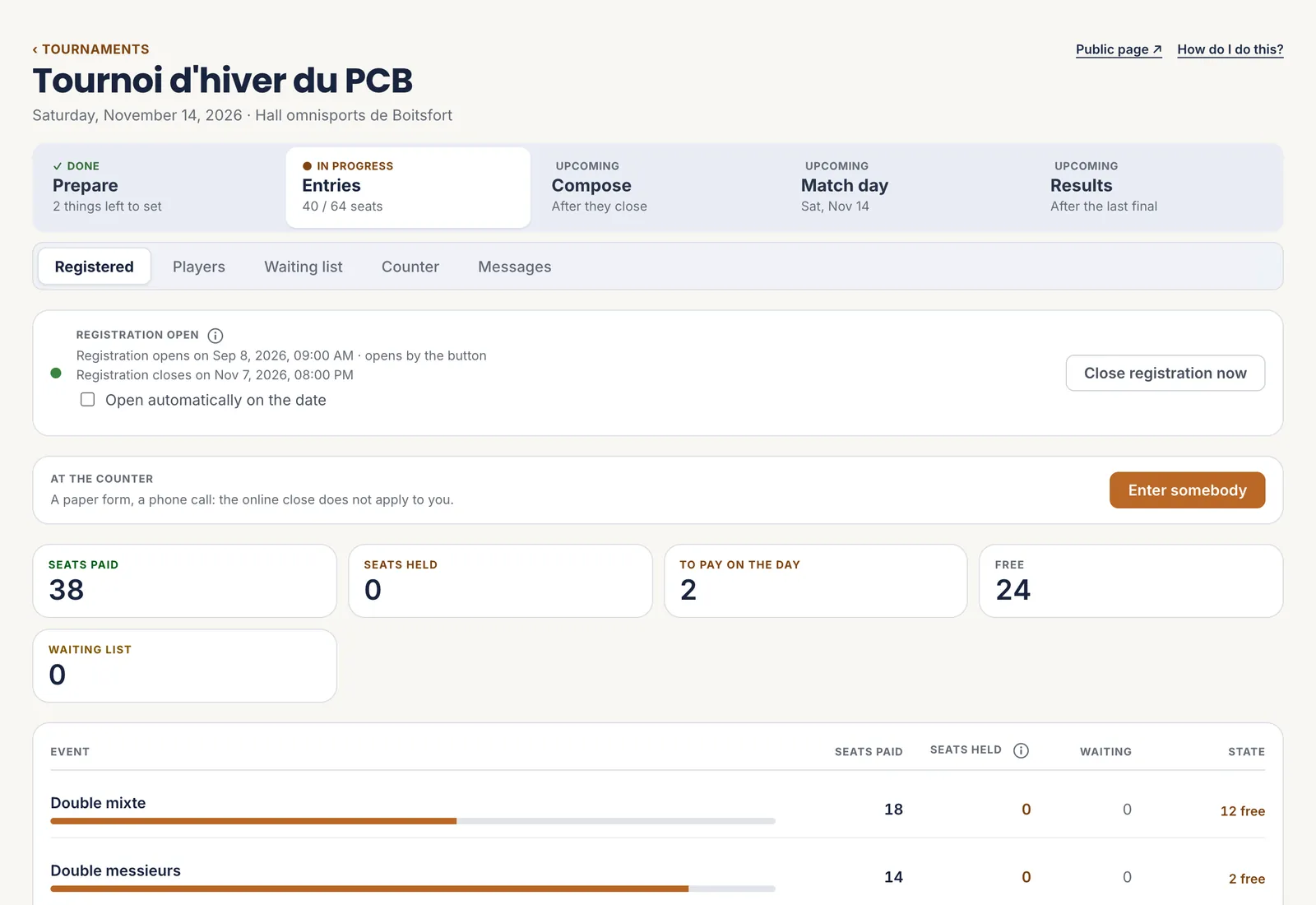
At the top of the “Registered” tab sits the opening card. Two ways to open: “Open registration now”, or tick “Open automatically on the date” so that entries open by themselves at the planned time.
The first time, two things are asked of you:
- The club’s details, complete: legal name, company number, address and billing email. If anything is missing, the screen gives the link to it.
- The terms and conditions, accepted once, with “Accept and open registration”.
Closing by hand is always possible, and changes nothing else: held places stay held, the waiting list too. Closing turns automatic opening off.
 1The state of entries
2Open or close
1The state of entries
2Open or close
The green dot means entries are open right now. - 1 The state of entries
- 2 Open or close
-
Tournament · Entries · Registered
Read the places
The counters say where each place stands:
- Paid: the place is secured.
- Held: a player has entered and is waiting for their partner, or has not paid yet. The place counts as taken; it frees itself at the end of the hold.
- To pay on the day: entered, to be collected on the day itself.
- Free and waiting list.
The table by event says the same, line by line. On each entry: “Add a partner”, or “Remove” one player or the whole pair, with or without a refund.
A refund a player asks for appears at the top of the tab: you decide it.
1Held places
A held place counts as taken: it is not sold again until it has expired. - 1 Held places
-
Tournament · Entries · Counter
Enter and take payment at the desk
“Enter somebody”, under “Registered”, takes an entry yourself. The online closing date does not apply to you, and a full event puts the pair on the waiting list. Tick “The club has already been paid” if the money is already in the till.
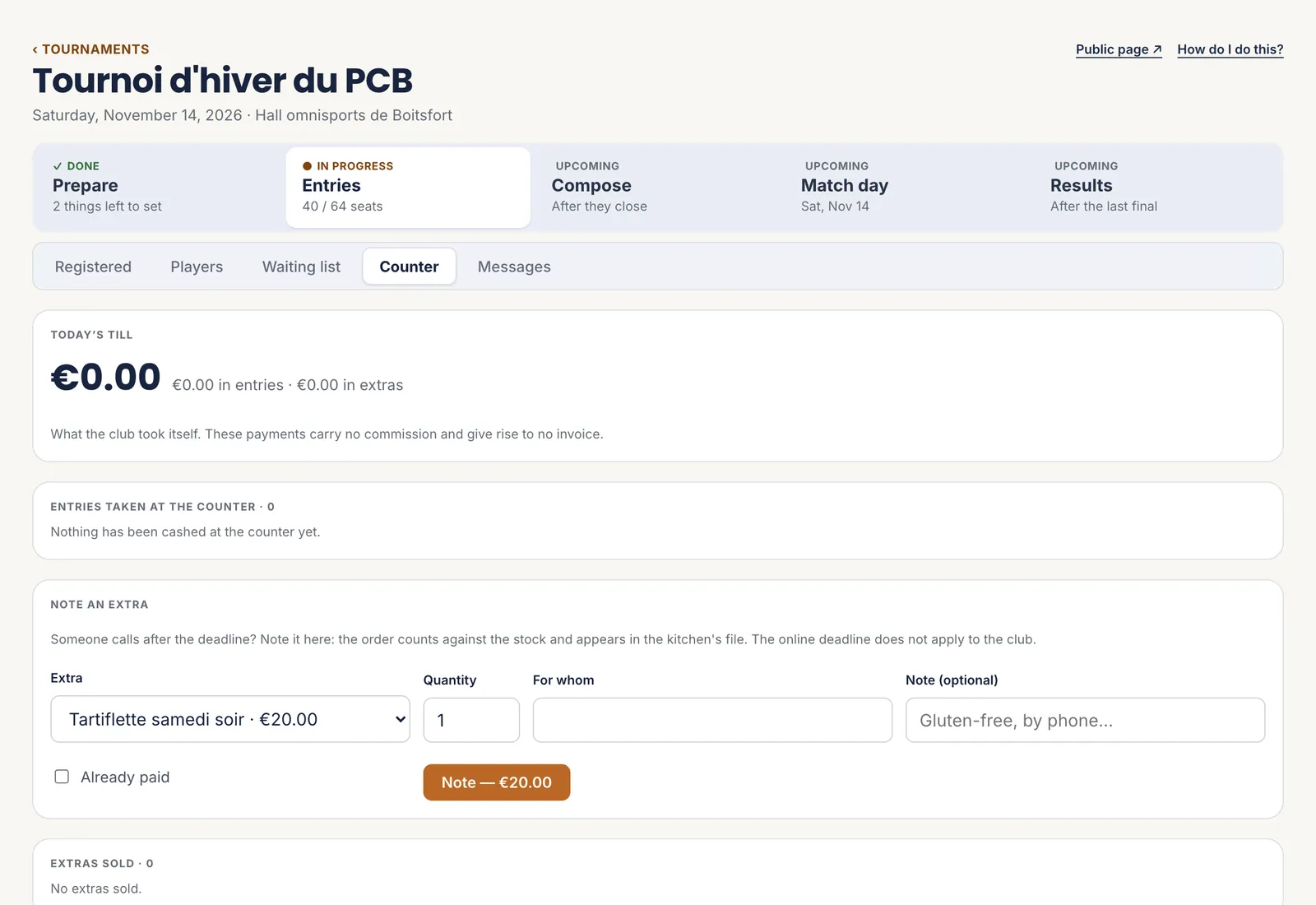
The “Counter” tab keeps the day’s till: what the club has collected itself, entries and extras. These payments carry no commission.
“Note an extra” is for the order that comes in after closing — one more supper, by phone. It counts in the stock and in the kitchen’s file.
 1Today’s till
2Note an extra
3Already paid or not
1Today’s till
2Note an extra
3Already paid or not
What is collected here stays with the club, with no commission and no invoice. - 1 Today’s till
- 2 Note an extra
- 3 Already paid or not
-
Tournament · Entries · Waiting list
Move the waiting list on
A full event does not stop entries: the next pairs go onto the waiting list.
Before closing, the queue moves by itself: every place given back goes to the first pair waiting. After closing, you let pairs in yourself, with “Let in” — as long as the draw has not been made.
A player who entered without a partner appears in the “Solo players” tab, which only exists when there are some. “Pair with…” puts two together; whoever is left over is refunded.
1The Waiting list tab
After closing, the queue no longer moves by itself: you let pairs in. - 1 The Waiting list tab
-
Tournament · Entries · Messages
Write to the entrants
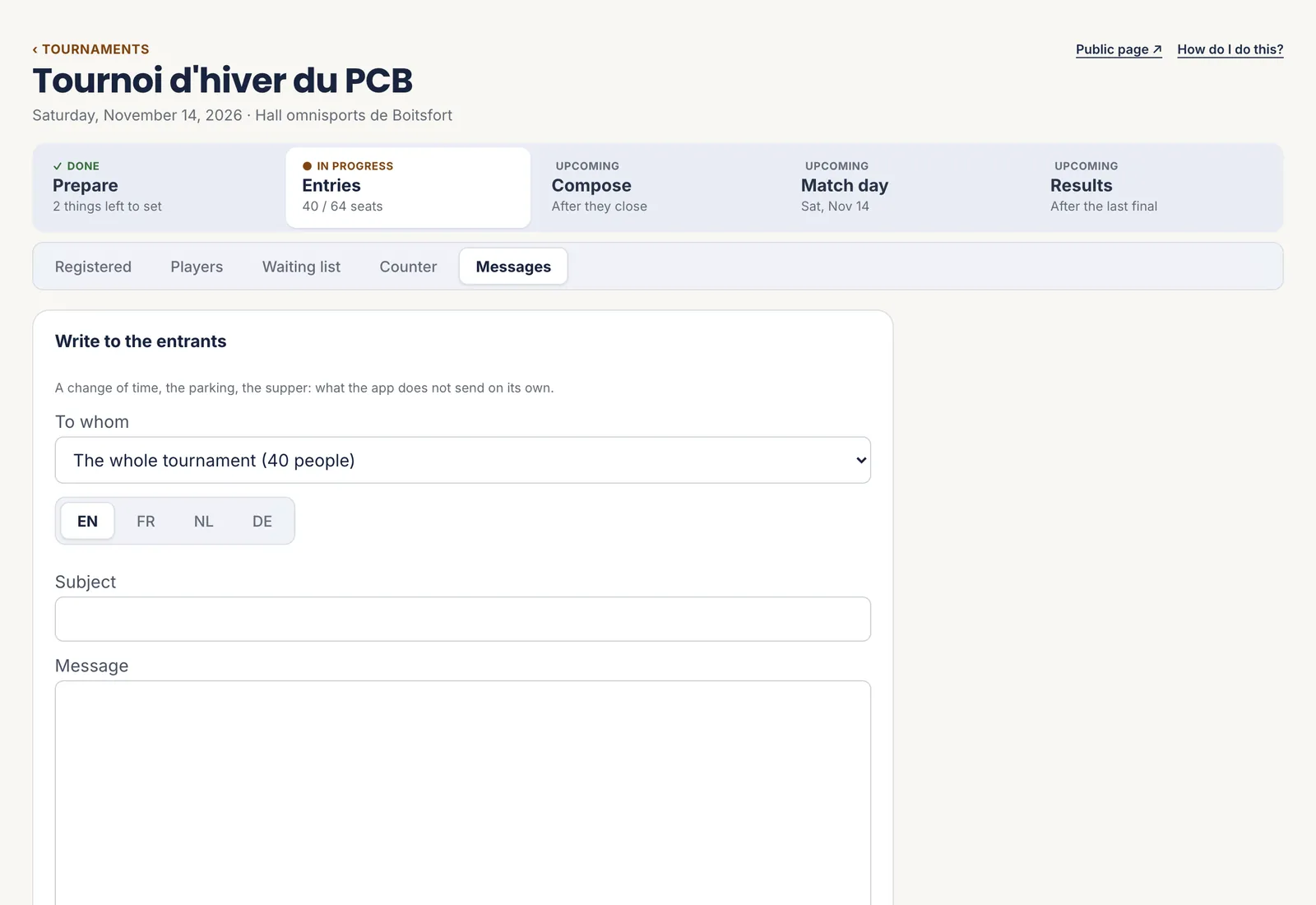
A change of time, the parking, the supper: what the application does not send by itself. “To whom” targets the whole tournament or a single event, and the waiting list can be told too.
Write first in the club’s language, then in the others if you can. Each player receives the version in their language; those whose language is not written receive yours. Your text is never translated automatically.
Once entries close, move on to drawing the pools and laying out the schedule.
 1To whom
2One version per language
1To whom
2One version per language
“Already sent”, further down, keeps a record of every message. - 1 To whom
- 2 One version per language
The five steps
- Open entries
- Read the places
- Enter and take payment at the desk
- Move the waiting list on
- Write to the entrants
All the help pages
The pages to forward to your members are in the members’ help, in English, French, Dutch and German.