
-
Tournaments · Simulations
Start a simulation
Under “Tournaments”, open the “Simulations” tab, then “New simulation”. It is born already filled in: a Saturday from 9 am to 6 pm, the club’s courts, one doubles event of twelve pairs, three pools then a bracket. You start from an example that runs, not from a blank page.
“Start from a grid” opens the same grid as when you create a tournament: tick the categories and levels, the finishing time appears, and the simulation keeps the gender, the age and the bounds of each level. “Turn into a tournament” carries them over.
Each simulation in the list shows its verdict — “Fits”, “Just fits”, “Overruns” — and its finishing time. “Duplicate” makes a copy: try another format without losing the first.
A simulation already turned into a tournament shows “Became …” and the tournament’s name. You always know where a tournament came from.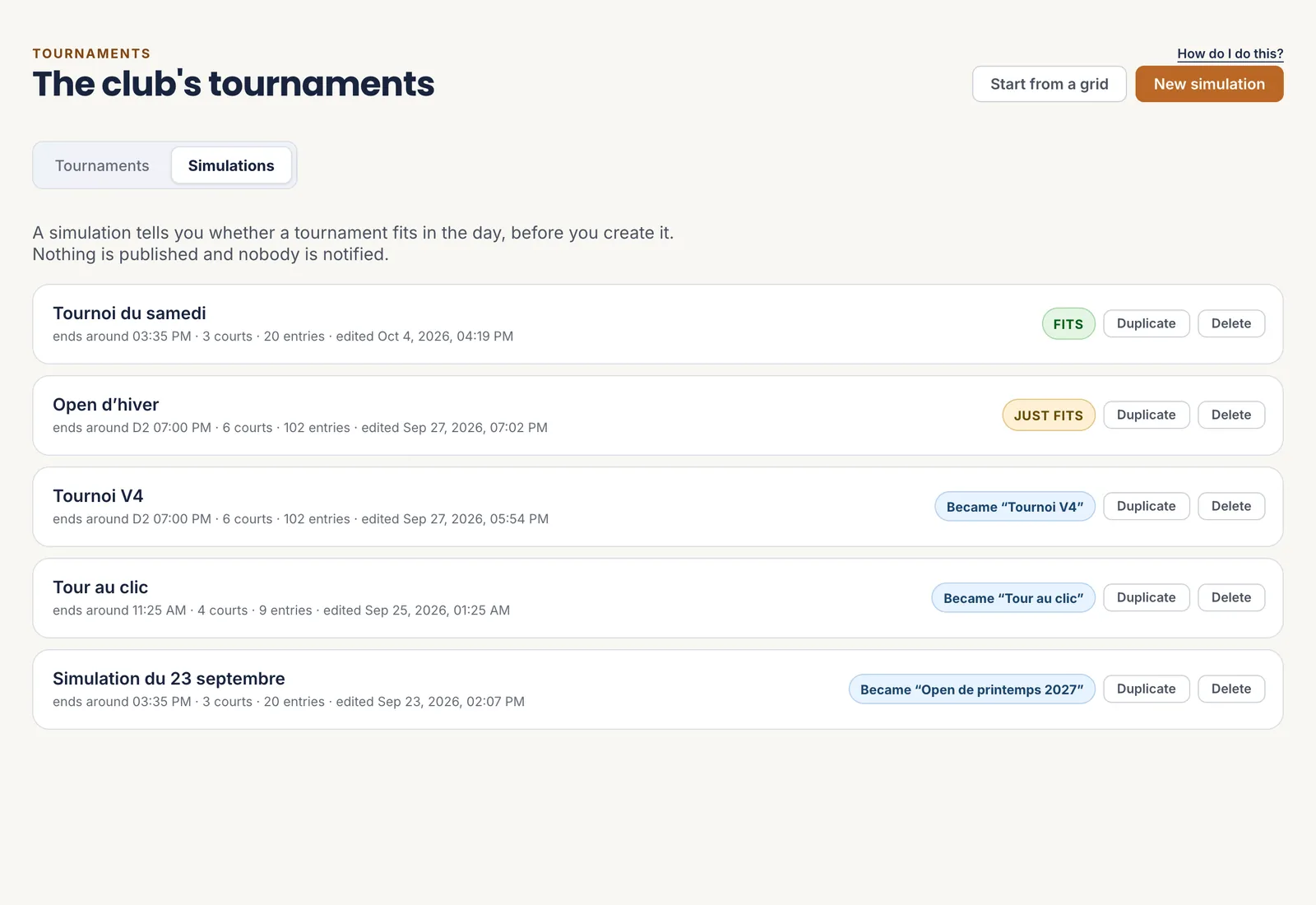 1New simulation
2The verdict
3Already a tournament
4Start from a grid
1New simulation
2The verdict
3Already a tournament
4Start from a grid
Nothing here is visible to players. - 1 New simulation
- 2 The verdict
- 3 Already a tournament
- 4 Start from a grid
-
Simulation · Setup
Describe the day and the events
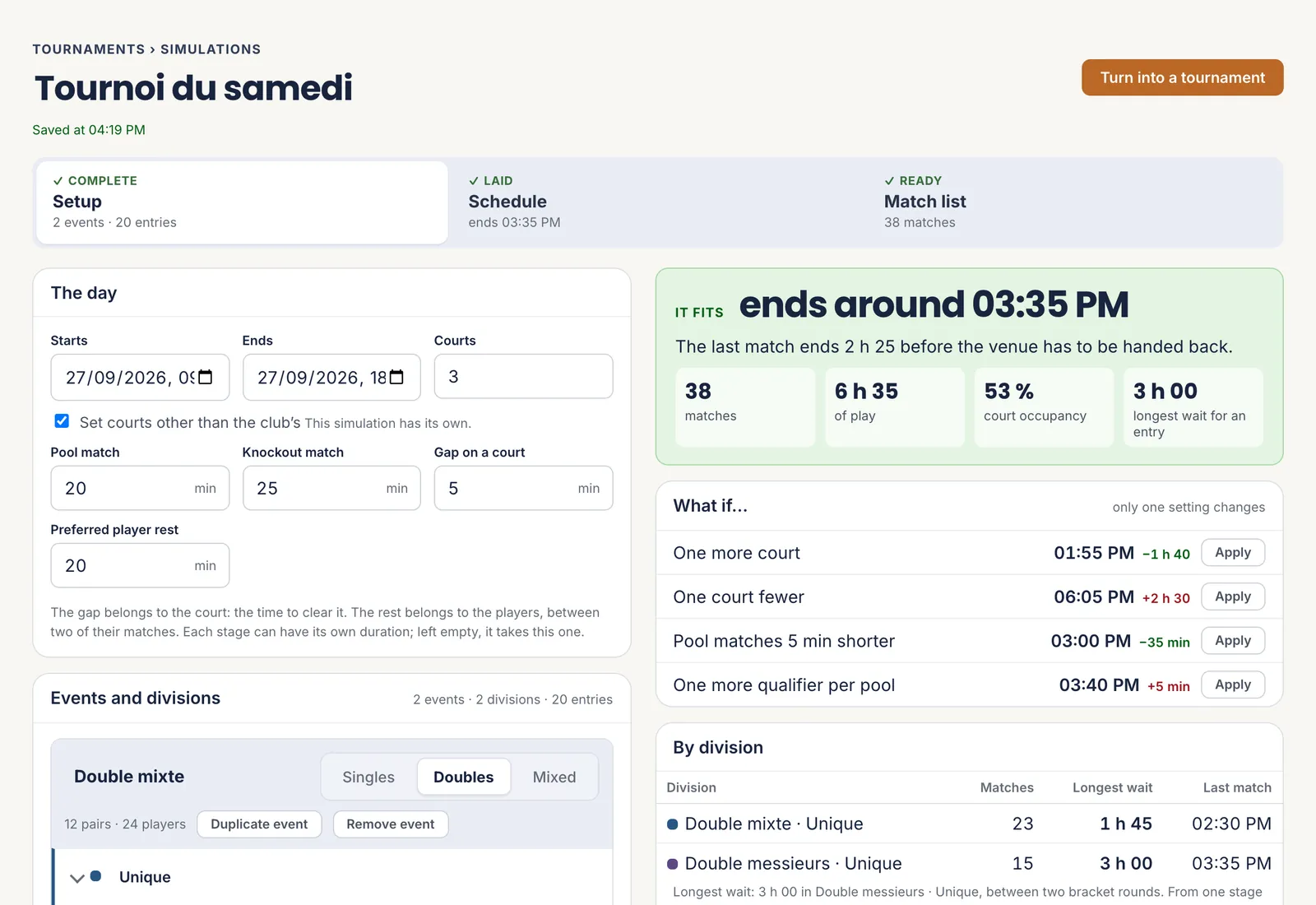
On the left, the assumptions. “The day”: start, end, number of courts, the length of a pool match and of an elimination match.
- The gap belongs to the court: the time it takes to free it between two matches.
- The rest belongs to the player: the time they would like between two of their matches.
Below, “Events and divisions”: the number of pairs expected in each event, then each division’s format — pools, single elimination, double elimination, placement matches.
“Duplicate event” copies a whole event, format included: handy for a women’s doubles that follows the same pattern as the men’s.
Everything is saved as you go: “Saved at …”, under the title, confirms it.
 1The day
2Duplicate event
1The day
2Duplicate event
Every change reruns the calculation: the verdict on the right follows. - 1 The day
- 2 Duplicate event
-
Simulation · Setup
Read the verdict, then try “What if…”
On the right, the result is recalculated with every change: the time of the last match, and how far that is from the time the hall must be handed back. Below: the number of matches, the playing time, how busy the courts are, and the longest wait of any entrant.
“What if…” tries the settings that matter most for you: one court more or fewer, shorter pool matches, one more qualifier per pool. Each line shows the new finishing time; “Apply” adopts it.
“By division” shows where the waiting sits. Three hours between two matches of the same entrant is a warning sign: that is the wait that sends players home before the final.
1The finishing time
2What if…
3By division
One setting at a time: each line says what it changes, in minutes. - 1 The finishing time
- 2 What if…
- 3 By division
-
Simulation · Schedule
Look at the estimated schedule
The “Schedule” tab lays the matches out the way the real schedule will: same calculation, same courts, same durations. A two-day tournament has one tab per day.
“Lay out the matches yourself” is for imposing an order: one pool on the centre court, the juniors in the morning. Tick a batch, choose the court and the starting time: the matches take the first free slots.
One limit to bear in mind: before entries open, nobody knows who will play two events. Rest is therefore counted per entrant, not per player. The real schedule will know.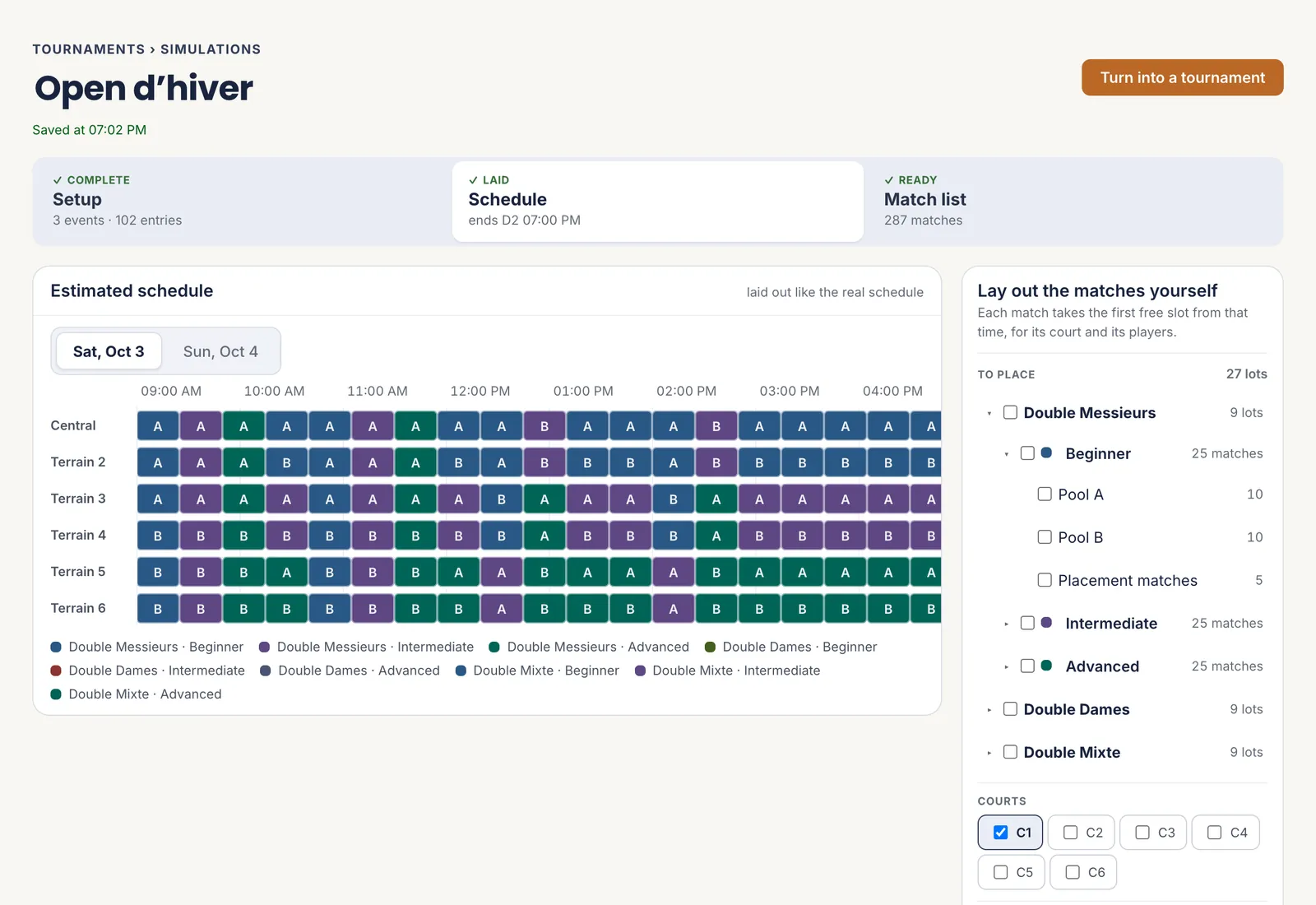 1The estimated schedule
2One tab per day
3Lay them out yourself
1The estimated schedule
2One tab per day
3Lay them out yourself
One colour per division: you see at a glance who is on which court. - 1 The estimated schedule
- 2 One tab per day
- 3 Lay them out yourself
-
Simulation · Turn into a tournament
Turn the simulation into a tournament
When the day fits, “Turn into a tournament” opens one last page.
- On the left, what a simulation does not know: the name, the sport, the tournament’s dates, when entries open and close.
- On the right, what will be created: the timetable, the durations, the courts, the events with their capacity, and the formats, picked up again at the draw.
The tournament is born with entries closed: nothing is published until you open them. The prices, the venue and the description remain to be set — that is the next page, create and prepare a tournament.
Turning the same simulation into a tournament twice creates two tournaments.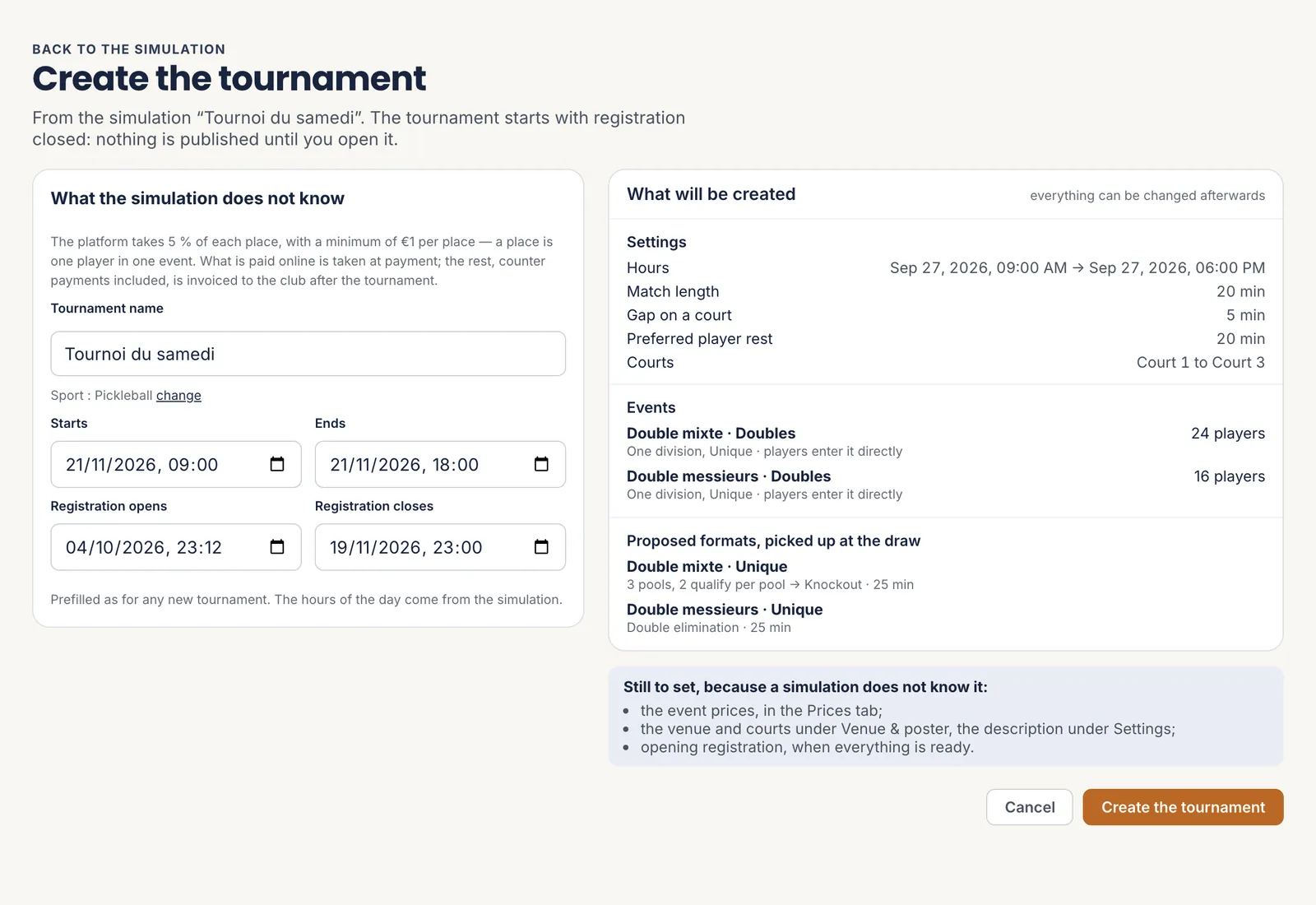 1What you add
2What will be created
3What is left to do
4Create the tournament
1What you add
2What will be created
3What is left to do
4Create the tournament
Everything created can still be changed afterwards. - 1 What you add
- 2 What will be created
- 3 What is left to do
- 4 Create the tournament
The five steps
- Start a simulation
- Describe the day and the events
- Read the verdict, then try “What if…”
- Look at the estimated schedule
- Turn the simulation into a tournament
All the help pages
The pages to forward to your members are in the members’ help, in English, French, Dutch and German.