
-
Tournament · Match day · Scoring table mode
Run the table, full screen
On match day, the tournament opens full screen, on a laptop as on a phone: one card per court, and five tabs at the bottom — Courts, Schedule, Matches, Brackets, Check-in. The number on Check-in counts those not here yet.
At the top, the day on one line: players checked in, courts in play, delay. A court running over its slot gets a red outline. Choose “Court 2” to follow only yours: one volunteer per court, each with their phone.
“Full view”, top right, brings back the console: the overview, the TV screen, the printouts. The choice holds until you close the browser.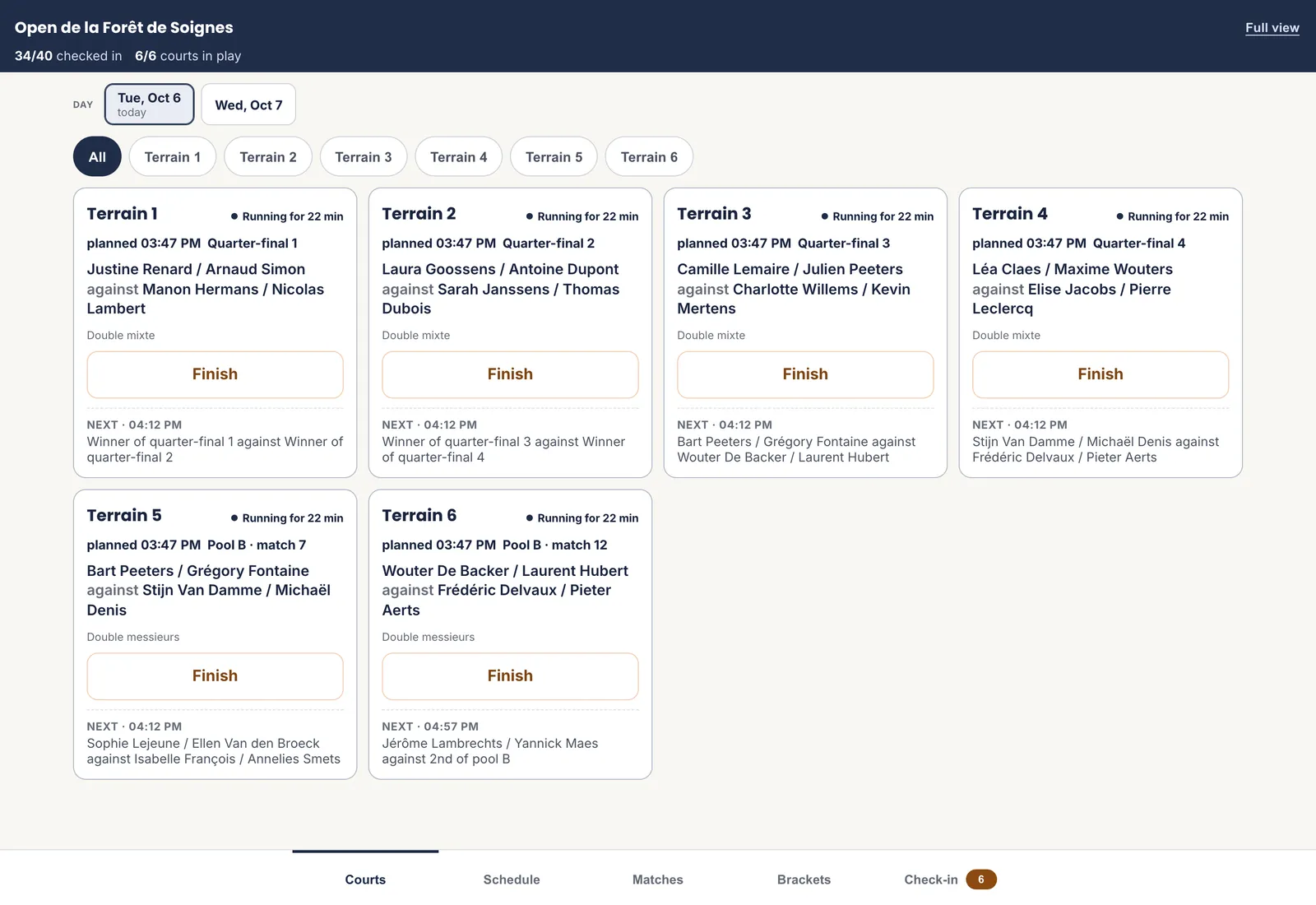 1The five tabs
2A single court
3Full view
1The five tabs
2A single court
3Full view
The schedule can be moved here too, with the mouse or a finger. - 1 The five tabs
- 2 A single court
- 3 Full view
-
Tournament · Match day · Full view · Overview
Keep an eye on the day
The match day overview counts the players checked in, the courts in play, the matches on the programme and the average delay. The delay is there for information: published times do not move, and the delay is made up.
The “Next action” names the court waiting for its match. On the right, those already playing without being checked in: “Check in the 6 players on court” ticks them in one go. Then those not here yet, in the order of their first match: those are the ones to call first.
The schedule is not rebuilt in the middle of the day. “Rebuild” exists, but it publishes new times to everyone: it is a between-days move, not a mid-afternoon one.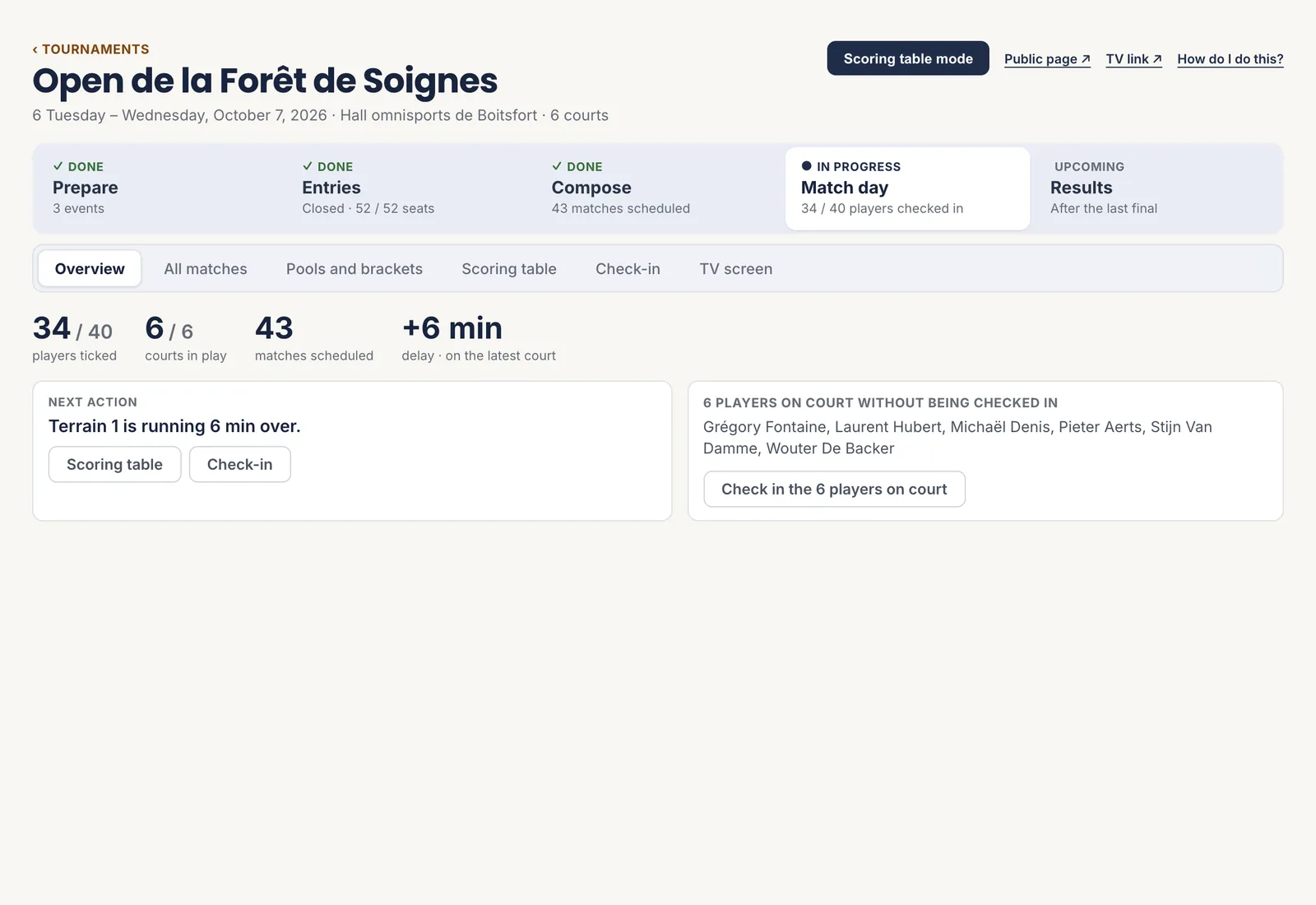 1The counters
2The next action
3On court, not checked in
1The counters
2The next action
3On court, not checked in
Those already playing are checked in with one button. - 1 The counters
- 2 The next action
- 3 On court, not checked in
-
Tournament · Match day · Check-in
Check arrivals
Each player is ticked on arrival, once only, even if they play two events. The two players of a pair are ticked separately.
Search for a name, or tick “Only those not here yet” to narrow the list to those missing. The day roster prints from here too.
Ticking does not declare anyone withdrawn and does not move the schedule: a withdrawal stays your decision, under “Format”.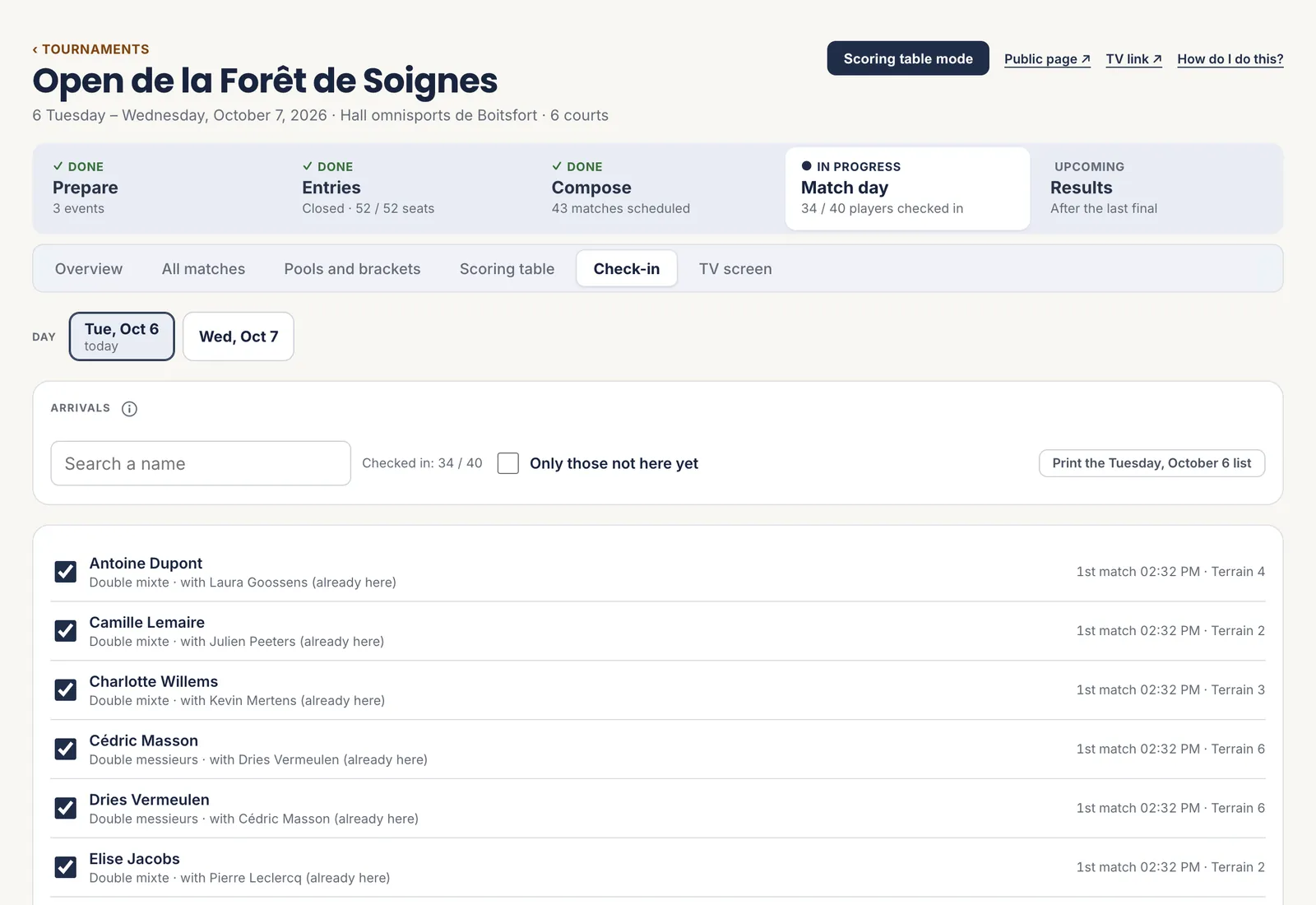 1Search for a name
2Those missing
3The day roster
1Search for a name
2Those missing
3The day roster
One box per player, ticked with a finger. - 1 Search for a name
- 2 Those missing
- 3 The day roster
-
Tournament · Match day · Scoring table
Start the matches and enter the scores
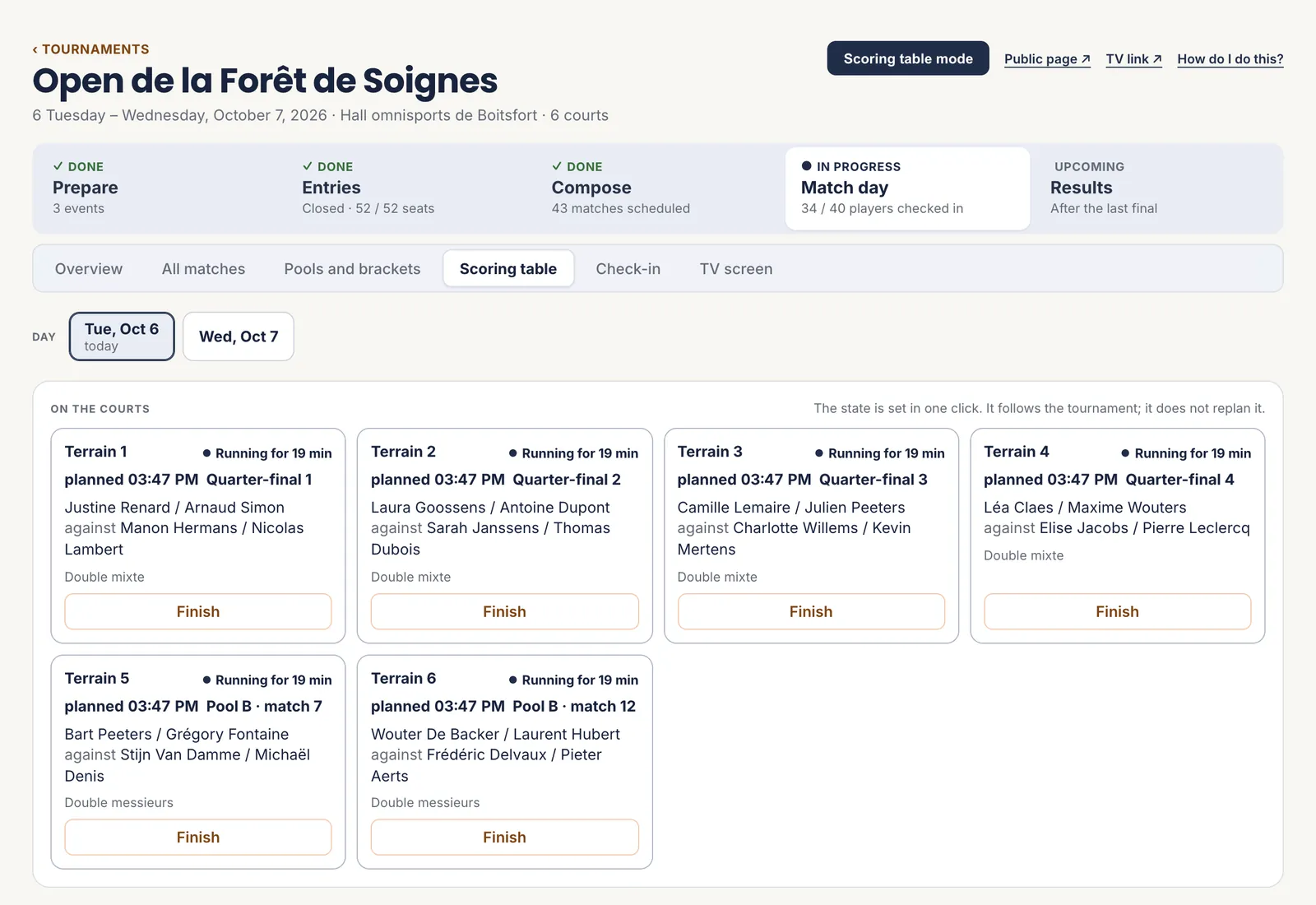
One card per court: the match in progress, for how long, and who is playing. “Start” when the players walk on, “Finish” when they walk off, then the score, game by game.
The cursor is already in the first box: 11, Tab, 7, Enter. The winner is only announced once they have their games; until then, Enter moves to the next box. A retirement or a match stopped on time is saved with “Save as it stands”. The winner then takes their place in the rest of the bracket.
“All matches” gives the same as a list, filtered by court or by event, with “Correct” for a score entered wrongly.
 1The court’s state
2Finish, then the score
1The court’s state
2Finish, then the score
The status is set in one click; it follows the tournament, it does not rebuild the schedule. - 1 The court’s state
- 2 Finish, then the score
-
Tournament · Match day · TV screen
Show the tournament on the hall’s TV
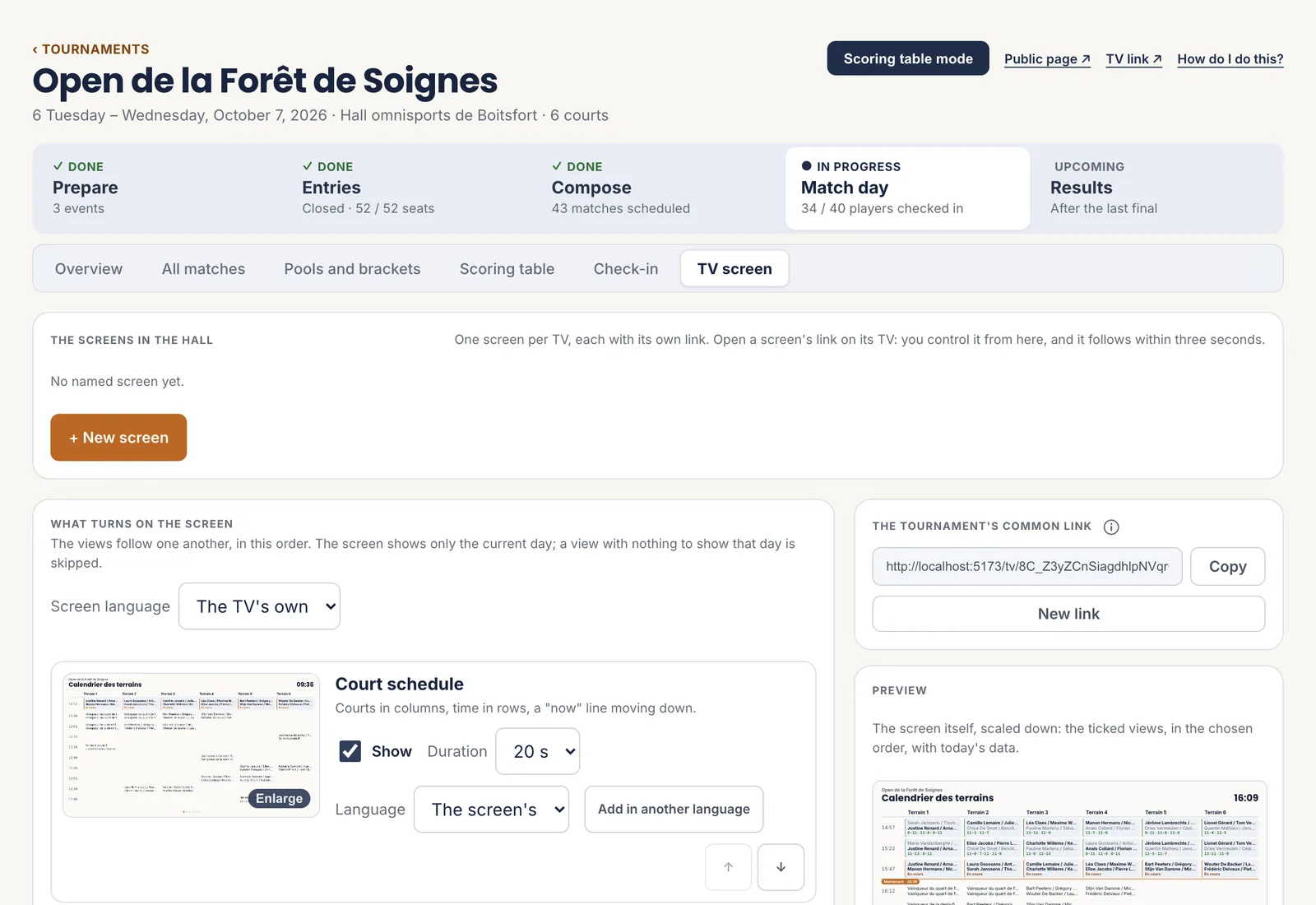
The simplest is “The tournament’s common link”: open it once on the TV, it shows the courts, the pools and the brackets, and keeps itself up to date.
To control one screen in particular — pause it, move to the next view — create it with “+ New screen” and open its link on the TV: it obeys within three seconds.
“What turns on the screen” chooses the views, their duration, their order and their language: court calendar, matches in progress, pools, brackets, sponsors. The screen only shows the current day.
 1A controlled screen
2The rotating views
3The common link
1A controlled screen
2The rotating views
3The common link
For a hall with a single TV, the common link is enough. - 1 A controlled screen
- 2 The rotating views
- 3 The common link
-
Tournament · Results
Publish the results
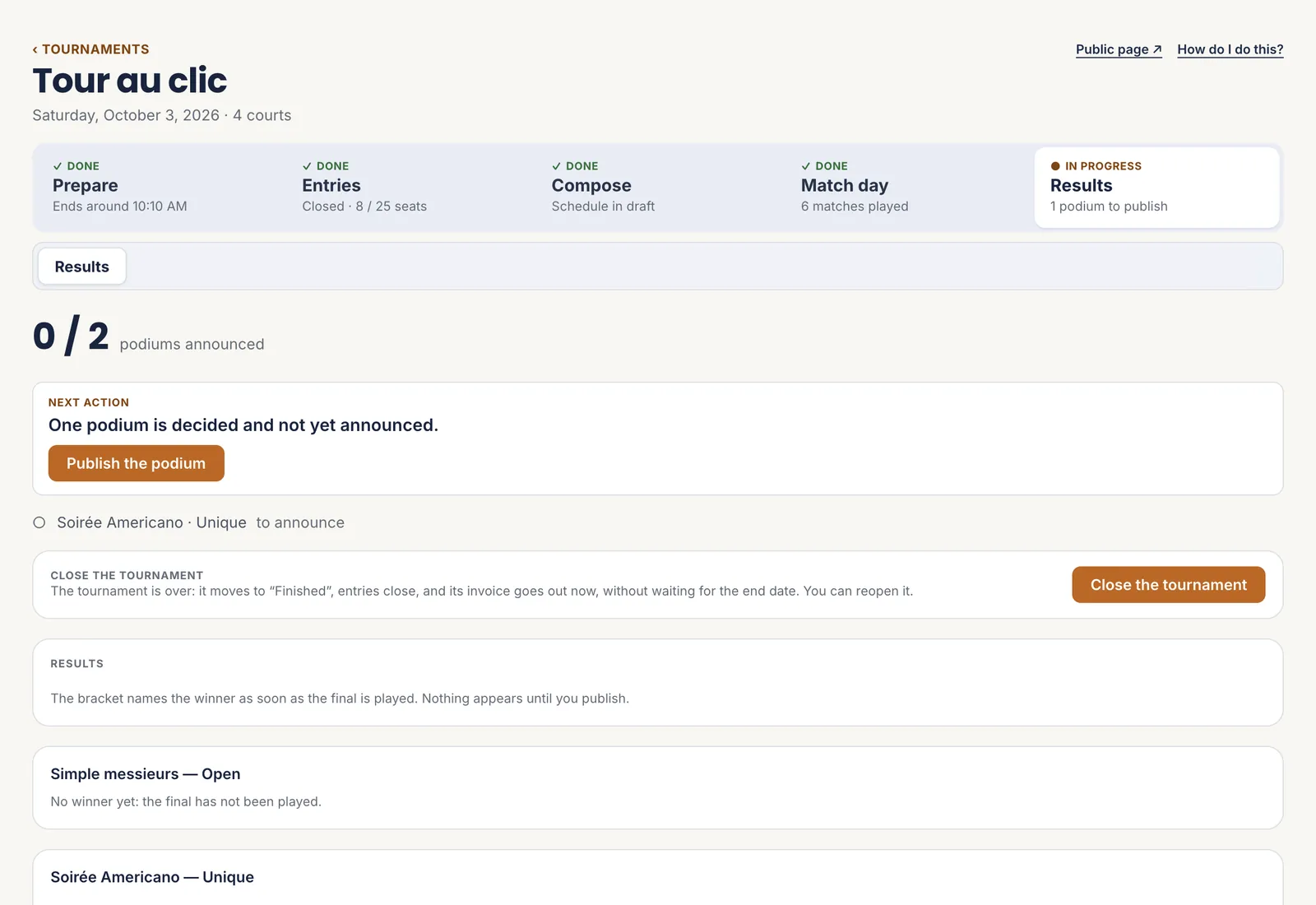
A final played decides the winner, but nothing appears on the public page until you publish: time to check a score, to hand out the cups.
The counter says how many podiums are announced out of how many. “Publish the podium” announces them. A score corrected afterwards marks the podium “to announce again”: what is online no longer says the same thing.
 1The podiums announced
2Publish
1The podiums announced
2Publish
A podium is published once you have checked it, not before. - 1 The podiums announced
- 2 Publish
-
Tournament · Results
Close, then prepare the next edition
“Close the tournament” marks it “Finished”: entries close, and its invoice goes out straight away, without waiting for the end date. A tournament can be closed once it has started, and reopened if needed; the invoice already issued stays.
For next year, “Duplicate”, under “Settings”, recreates the tournament with its events, prices, courts and text, without a single entrant. All that is left is to change the dates.
1Close
Closing stops entries and sends the tournament’s invoice. - 1 Close
The seven steps
- Run the table, full screen
- Keep an eye on the day
- Check arrivals
- Start the matches and enter the scores
- Show the tournament on the hall’s TV
- Publish the results
- Close, then prepare the next edition
All the help pages
The pages to forward to your members are in the members’ help, in English, French, Dutch and German.