
-
Before you start
Prepare your file
Start from the file you already have, whatever it is. A spreadsheet exported as CSV will do, and there is nothing to reformat :
- One line per person, and only one. The same name and the same email address on two lines make a single profile. Two different names under one address — a parent and their child — are shown to you before the import : you decide.
- One column per piece of information, with a header on the first line : first name, last name, email, date of birth, phone.
- The email address is the key. It is what lets the member open their space and complete their profile. A line without one still comes in, but its owner will not be able to do anything themselves.
Do not try to fill everything in. What is missing gets completed at step 3, by the people concerned.
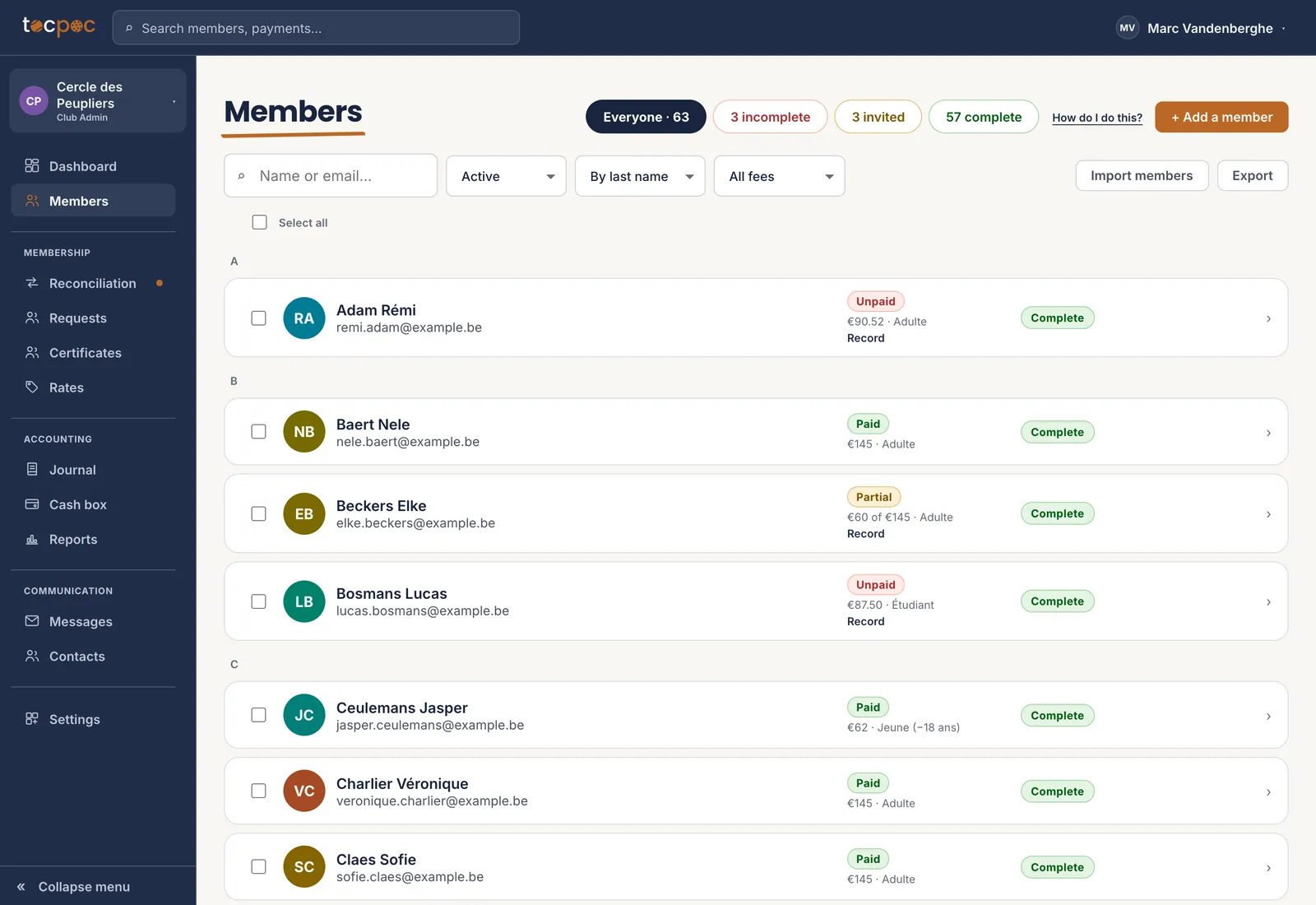 1The import button
This is where the file comes in, and where you will see the result. - 1 The import button
-
Members
Drop the file in
Click « Import members » and choose your file. When the headers are recognised, the profiles are created straight away and the list updates in front of you.
Only two things can stop you on the way : a column the app could not place, and an address already known under another name. It asks you before writing anything at all.
The counters at the top tell you what just happened : how many members in all, how many incomplete profiles, how many people already invited to complete theirs.
Unsure about the file ? Try five lines first. Nothing stops you importing the rest afterwards, and a profile created by mistake can be deleted.
1What came in
The counters are filters : click « incomplete » to see only the profiles that still need work. - 1 What came in
-
Members · Incomplete
Have what is missing filled in
A profile is called incomplete when it lacks a field your club has made required. Do not fill them in for them. It takes a long time, and you do not have the right details.
The « Invite to complete » button sends the member a personal link. They open their profile, correct their address, add their child’s date of birth, and you have typed nothing.
You can select several and invite them all at once.
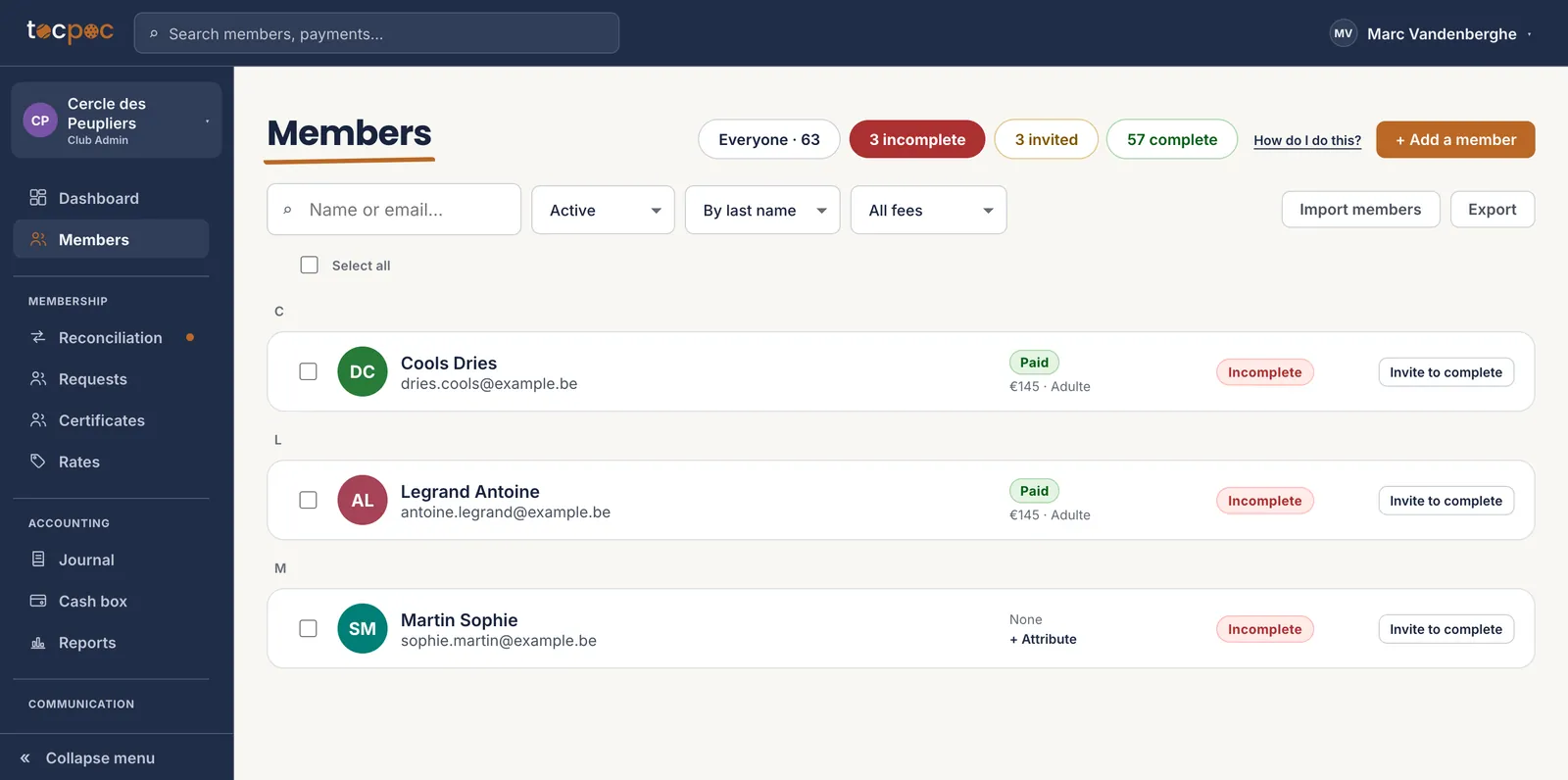 1The link goes to the member
The « incomplete » filter isolates exactly the profiles that need something. - 1 The link goes to the member
-
Next
Assign the season’s fees
Importing members does not give them a fee. A profile with no fee carries the « None » label and an « Attribute » link.
For a whole season, do not do it profile by profile : select the members concerned in the list and assign in one go, at the rate you want. The pro rata works itself out from each one’s joining date.
Your rates do not exist yet ? Start there : set up your season and your rates.
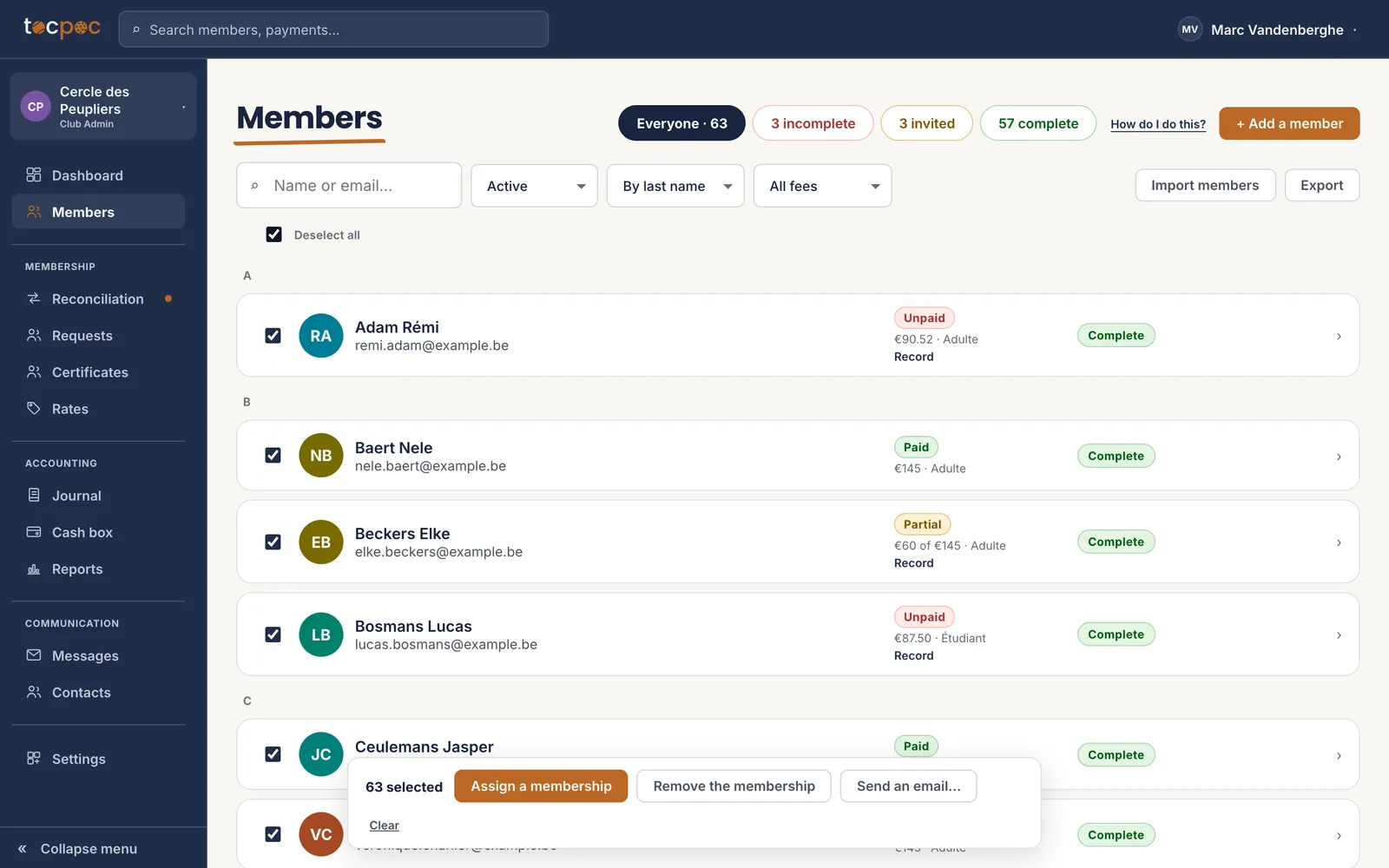 1Tick the whole list
2Assign to the whole selection
1Tick the whole list
2Assign to the whole selection
The bottom bar counts what is ticked and acts on all of it at once. - 1 Tick the whole list
- 2 Assign to the whole selection
The 4 steps
- Prepare your file
- Drop the file in
- Have what is missing filled in
- Assign the season’s fees
All the help pages
The pages to forward to your members are in the members’ help, in English, French, Dutch and German.