
-
Membership · Rates
Open the rates screen
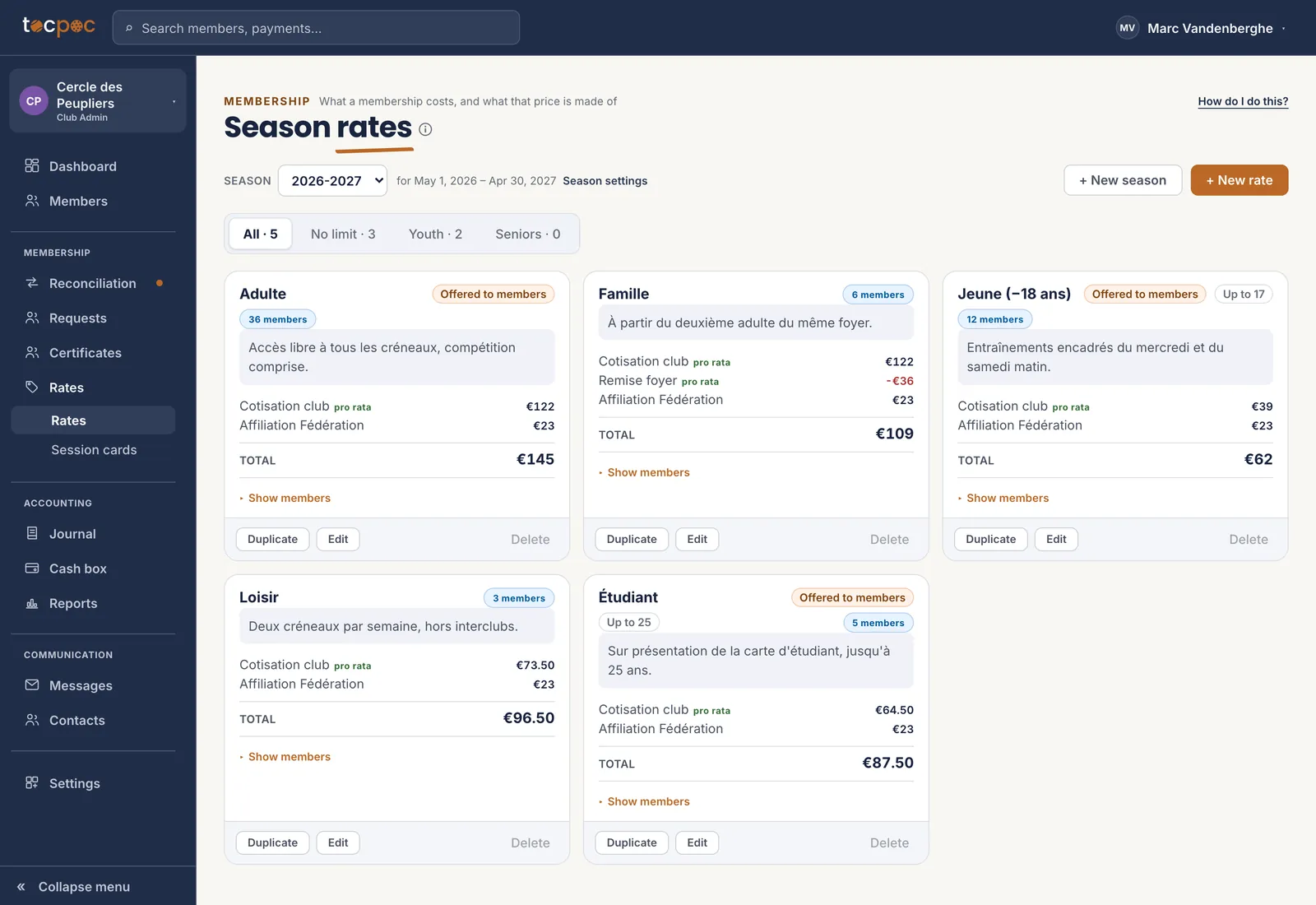
Everything happens on one screen : the dropdown at the top says which season you are looking at, and the cards below are that season’s rates.
As soon as a rate is restricted by age, chips filter the list : All, No limit, Youth, Seniors.
A club rarely has more than three or four : adult, youth, student, family. Start with what you charge today, not with what you might one day want to charge.
 1The season being viewed
One season at a time. What you change here does not touch the others. - 1 The season being viewed
-
Season settings
Set the dates, and decide who picks
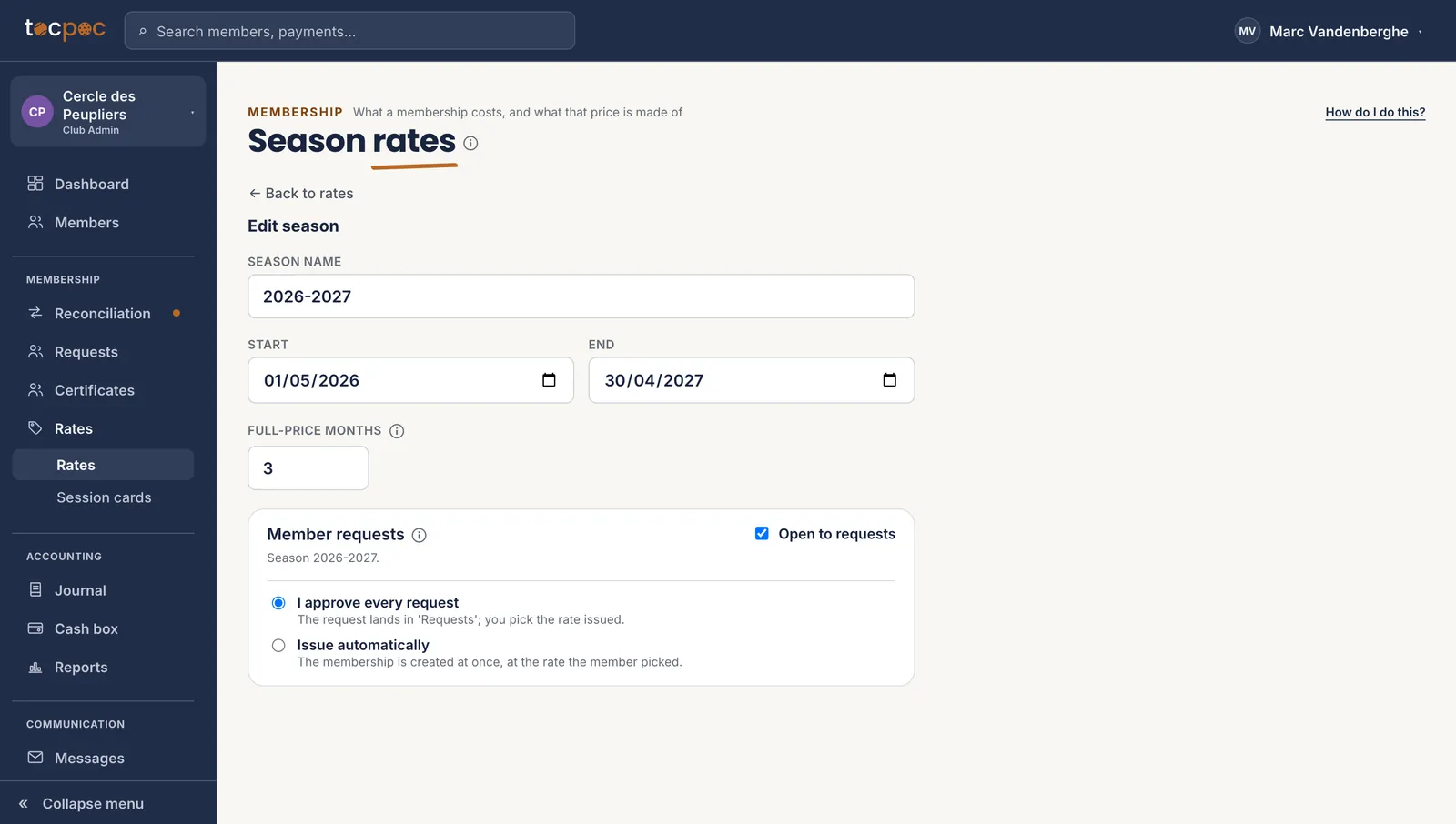
The start and end dates bound the pro rata. Nothing computes outside them : someone joining in January pays for the months still to come, and that count starts from these two dates.
The « Open to requests » box decides who picks the rate. Ticked, a member without a fee sees your rates in their space and requests theirs. Unticked, you assign them, and the member has nothing to pick.
That leaves the difference between « I approve each request » and « Automatic assignment ». The first lets you take a look before the fee exists ; the second saves you that click and trusts the member.
 1The dates bound the pro rata
2Open to members, or not
1The dates bound the pro rata
2Open to members, or not
The two dates at the top are the only ones feeding the pro rata. - 1 The dates bound the pro rata
- 2 Open to members, or not
-
Membership · New rate
Write a rate, line by line
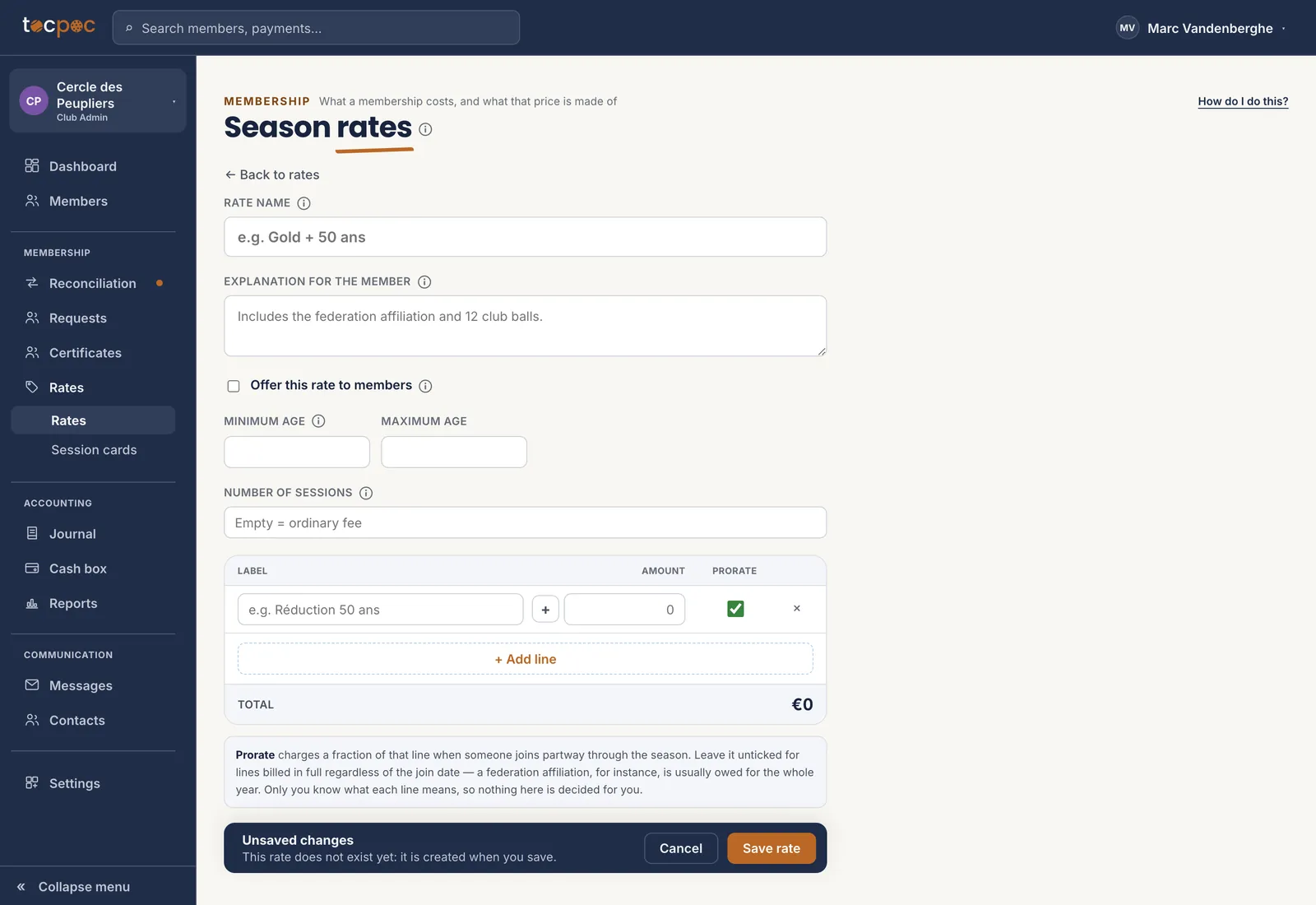
The name is what the member will read. So is the explanation under it : write what the rate covers, in your own words. That sentence is what lets a member pick without phoning you.
Then come the lines. One line per amount that deserves a name : « Club fee 122 € », « Federation affiliation 23 € », and a discount is written as a negative amount. No percentage, no coupon field.
A rate can be restricted by age : a minimum age, a maximum age, or both. The member space then offers it only to members in that band, with age counted on 1 January of the season, like federation categories. You can always assign it yourself, whatever the age.
The member still pays once : one fee, one reference, one transfer, however many lines there are.
 1Visible to the member
2One line, one amount, one pro rata
1Visible to the member
2One line, one amount, one pro rata
The total adds itself up. It must never go negative, and that is checked here. - 1 Visible to the member
- 2 One line, one amount, one pro rata
-
The rule that surprises
The pro rata is decided line by line
The pro rata box sits on the line, not on the rate. It is the only way to be right : a club fee is spread over the remaining months, a federation affiliation is not — the federation charges it to you in full, whatever the month.
Each line is computed separately, and only then added up. Never the other way round. Prorating the total would shrink the affiliation you do pay in full.
A −20 € discount on half a season stays −20 € if you leave the box unticked. Leave it unticked for everything due in one piece.
1Prorated
2Due in full
The card shows line by line what is prorated and what is not. - 1 Prorated
- 2 Due in full
-
Members · Selection
Assign the rate to your members
A rate that is written costs nobody anything as long as it is assigned to nobody. This is the move that creates the fees, and it happens in bulk, never profile by profile : tick the members concerned in the list, then « Assign a membership ».
The pro rata is worked out person by person, from each one’s joining date. Amount, labels and structured reference are frozen at that moment.
The filters at the top are there to aim straight : the youth rate to the under-eighteens, the student rate to those who asked for it. Select, assign, and start again with the next rate.
Assigned by mistake ? « Remove the membership » undoes the same selection, as long as no payment has landed on it.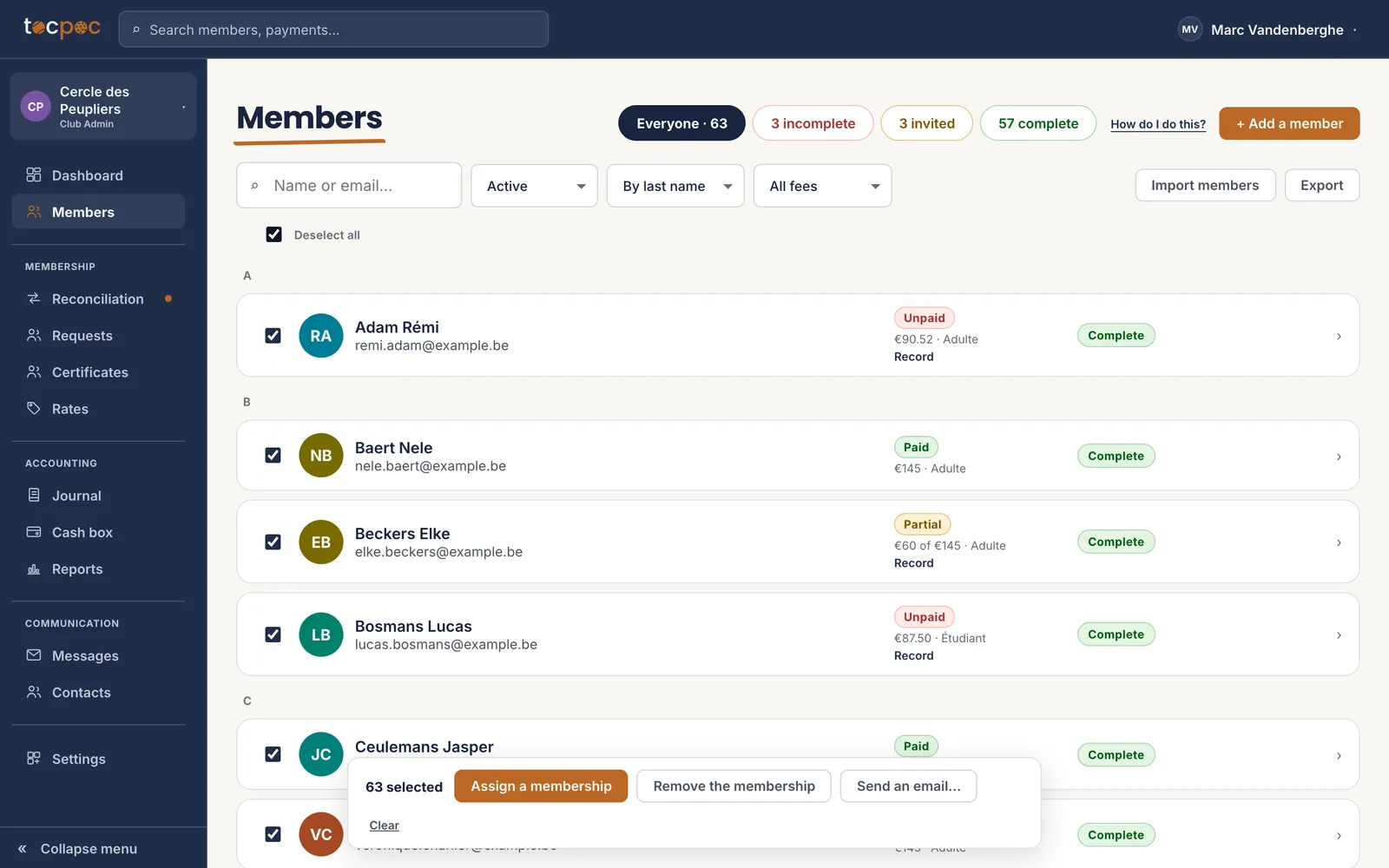 1Tick the whole list
2Assign to the whole selection
1Tick the whole list
2Assign to the whole selection
Sixty-three fees in one move, each at its own pro rata. - 1 Tick the whole list
- 2 Assign to the whole selection
-
What the member will see
Check from the other side
If you ticked « Offer this rate to members », this is what the member finds in their space : your rates, their explanation, and the price that concerns them.
The big figure is what they will pay. The struck-through line above is the full-season price, and the « Covers from … to … » sentence says why the two differ.
It is the best proofreading of your work : if the detail looks obscure to you here, it will look obscure to them.
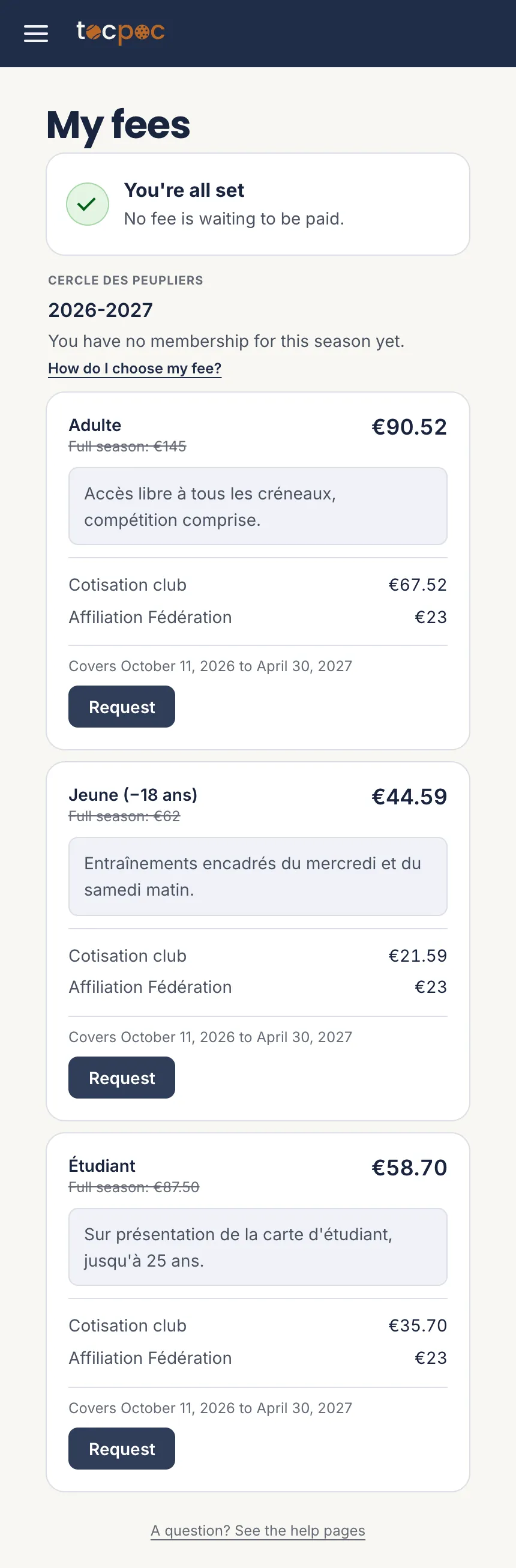
The same rate, seen by the member. The price shown is already the one for their joining date. - 1 The price you wrote
- 2 What they pay joining now

The 6 steps
- Open the rates screen
- Set the dates, and decide who picks
- Write a rate, line by line
- The pro rata is decided line by line
- Assign the rate to your members
- Check from the other side
All the help pages
The pages to forward to your members are in the members’ help, in English, French, Dutch and German.