
-
Tournaments
Create the tournament
Under “Tournaments”, “Create a tournament”, at the top right of the list, opens a page of its own. On the left, the essentials: the name, the sport, start and end, when entries open and close. The dates are prefilled: next Saturday from 9 am to 6 pm, entries open from now and closing the evening before at 11 pm.
The name sets the tournament’s public address, and that address never changes again: it will be on the poster and in every message. Choose it as you would print it.
On the right, how to set up the events: “Start from a ready-made grid”, the next step, or “Set everything up myself”, which creates the tournament without events. The grid is only offered for a sport with a rating, such as DUPR in pickleball.
The platform’s commission is stated in the same place, before you create anything.
Made a simulation? Start from it: “Turn into a tournament” brings over the events, the courts and the formats. See simulate a tournament.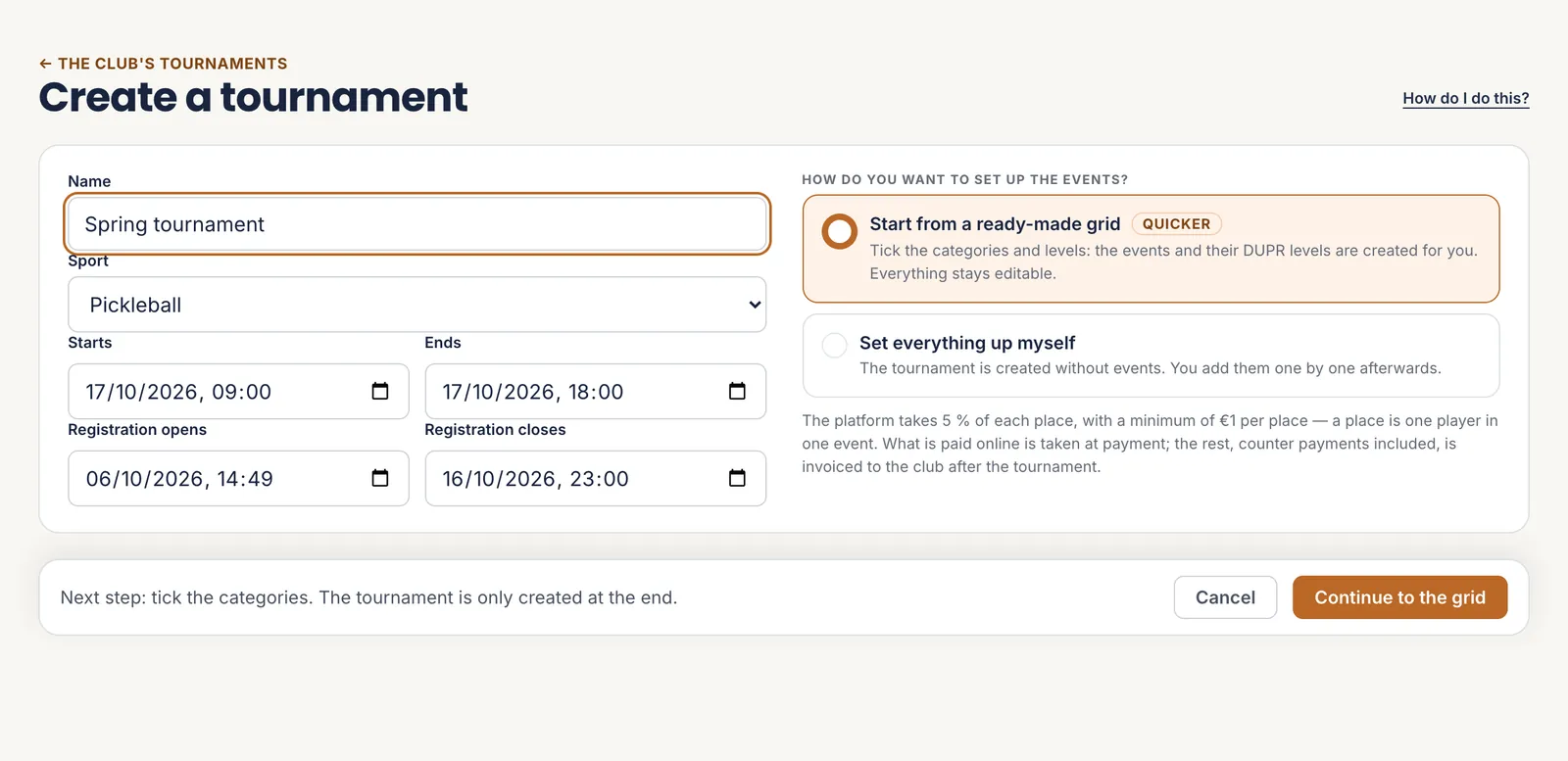 1The name, and so the address
2The entry dates
3The grid, or by hand
4Continue
1The name, and so the address
2The entry dates
3The grid, or by hand
4Continue
Nothing is created yet: the tournament is born on the last click. - 1 The name, and so the address
- 2 The entry dates
- 3 The grid, or by hand
- 4 Continue
-
Tournaments · Create a tournament
Tick the categories and levels
The grid crosses the categories — singles, doubles, mixed, women, men, open or 50+ — with the DUPR levels, from Beginner to Expert. Each ticked row becomes an event, each ticked box a level of that event.
The “Quick suggestions” tick the usual sets in one click. Add your own categories, rename the levels or move their thresholds with “Edit the levels”.
Under each row, the real bounds of its levels, worked out from the ticked boxes only. With Beginner and Advanced alone, Beginner runs up to 3.99 and Advanced takes everything from 4.0: no rated pair is left without a level.
On the right, the estimated finishing time is recalculated with each box, using the number of courts, which you can change. Below, two settings, on by default and adjustable: freeze the DUPR ten days before the tournament, and suggest a merge for a level with fewer than five entries.
The tournament is only created when you click “Create the … events”. Everything the grid sets up can be changed afterwards in the Events tab.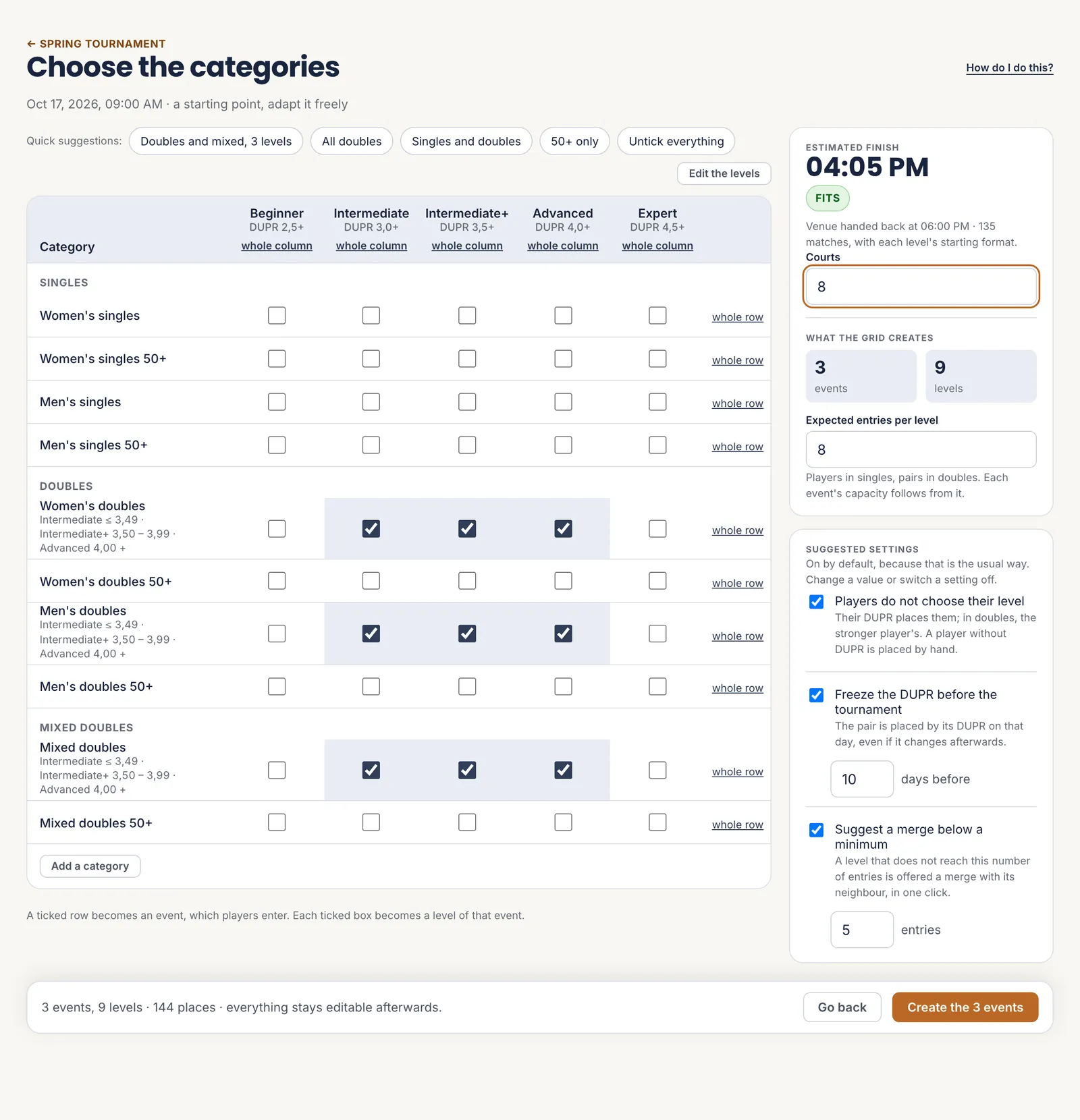 1The quick suggestions
2The bounds of the row
3The estimated finish
4The suggested settings
1The quick suggestions
2The bounds of the row
3The estimated finish
4The suggested settings
Eight courts, eight pairs per level: the day fits. - 1 The quick suggestions
- 2 The bounds of the row
- 3 The estimated finish
- 4 The suggested settings
-
Tournament · Prepare · Overview
Follow what is left to do
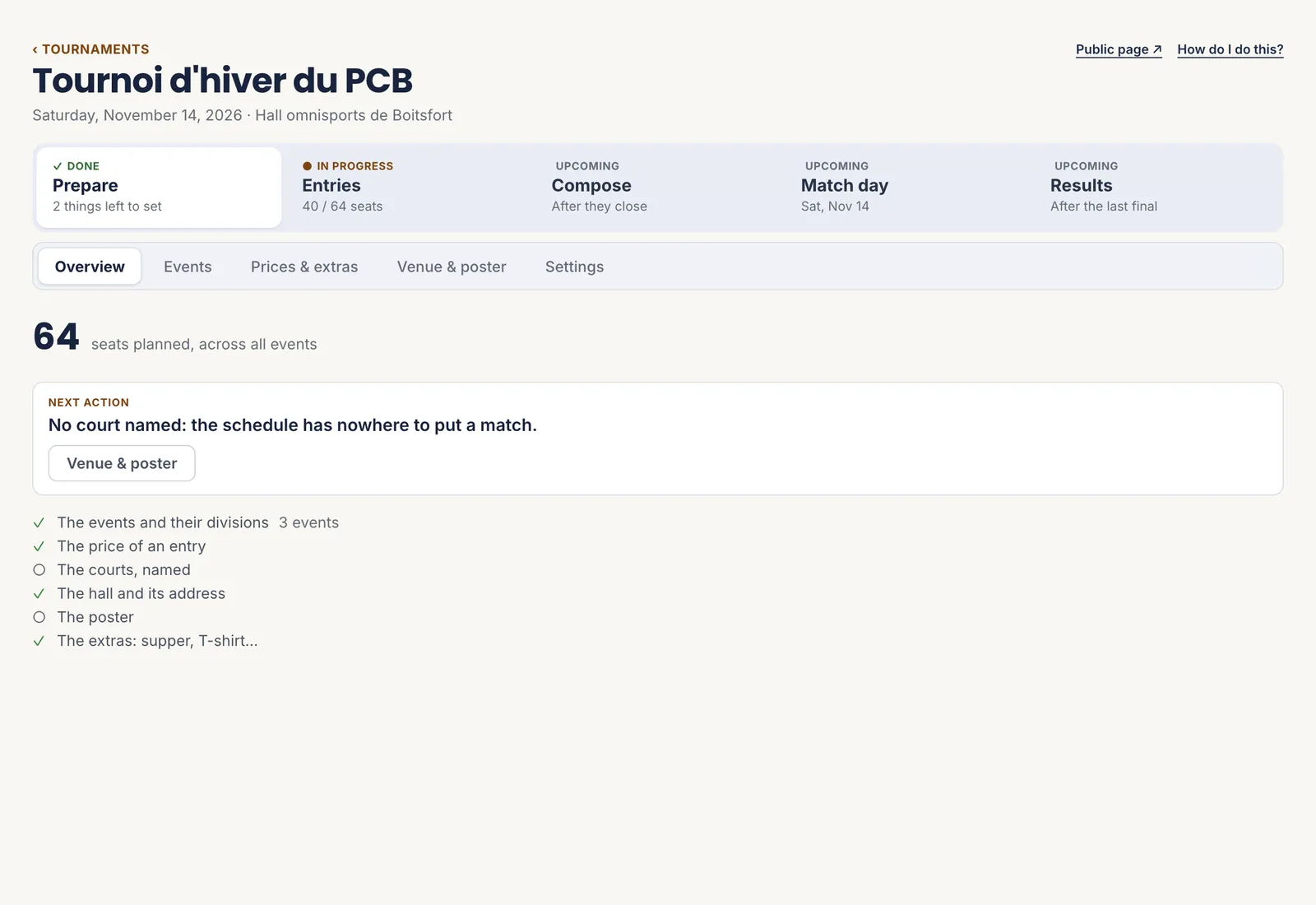
A tournament reads in five phases, across the top of the screen: Prepare, Entries, Compose, Match day, Results. The current phase stands out, but everything stays clickable: the bar points the way, it never blocks.
The “Prepare” overview ticks off six points: the events, the price of an entry, the courts, the hall, the poster and the extras. The first one missing becomes the “Next action”, with a button that takes you there.
The poster and the extras are optional. A tournament with no supper and no T-shirt is a perfectly normal tournament.
 1The five phases
2The next action
3What is still missing
1The five phases
2The next action
3What is still missing
The empty circles are what is left; the next action takes you there in one click. - 1 The five phases
- 2 The next action
- 3 What is still missing
-
Tournament · Prepare · Settings
Write the description and set the pace
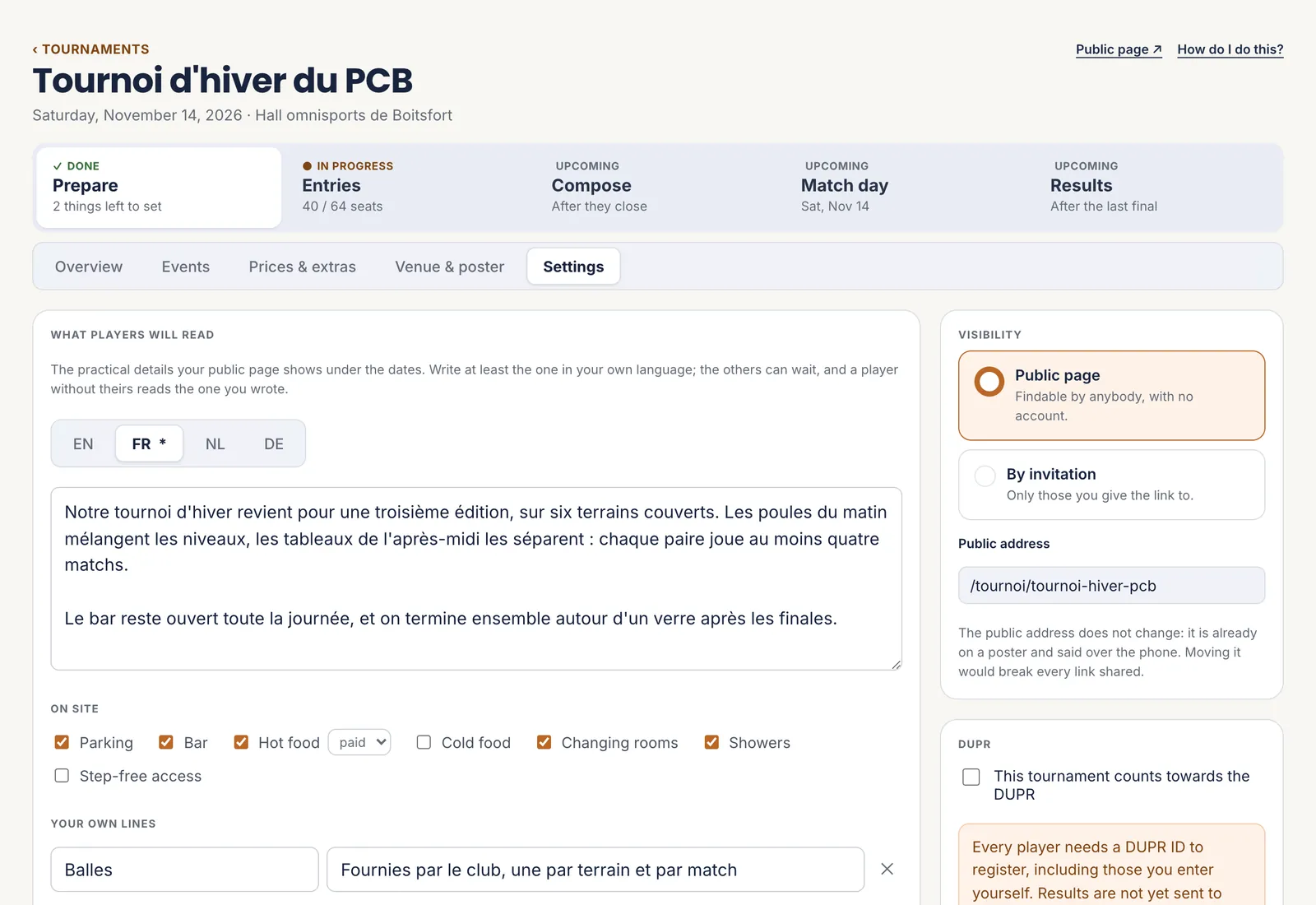
“Settings” is the tab the tournament opens on right after it is created.
- What players will read: the description on the public page, and what there is on site — parking, bar, changing rooms. Only the club’s language is required; a player whose language is missing reads that one.
- The pace of the matches: the length of a match, the gap on a court, a player’s preferred rest, the winning sets. The schedule starts from these figures.
- Pool tie-breaks: the order of the criteria when two pairs have the same number of wins.
- Visibility: a public page anyone can find, or by invitation, for those you give the link to.
How long a place is held for an entrant’s partner is also set here.
The “Save” button only appears when there is something to save.
 1What players will read
2On site
3Visibility
1What players will read
2On site
3Visibility
One language at a time: the asterisk marks the club’s, the only one required. - 1 What players will read
- 2 On site
- 3 Visibility
-
Tournament · Prepare · Events
Set up the events
An event is a separate bracket: mixed doubles, men’s doubles, women’s singles. Whether it comes from the grid or from “Add an event”, it opens on the same screen, in four blocks.
- The event: its name, its format — doubles, mixed, singles, or solo with a rotating partner — and its capacity, in pairs for doubles.
- Who may enter: gender and age. The DUPR refuses nobody at entry.
- The levels: “The DUPR places the pairs”, by the stronger of the two, or “The player picks their level”. Each level is edited in place: its name, “From”, “Up to (included)”.
- Pace and times, folded: a match length of its own, or the times the event can be played.
The scale under the levels shows what they cover. A gap shows up hatched, with “Close the gap” to close it. A pair outside every band is suggested the nearest level; a pair without a read DUPR is placed by hand.
An event with entrants cannot be deleted.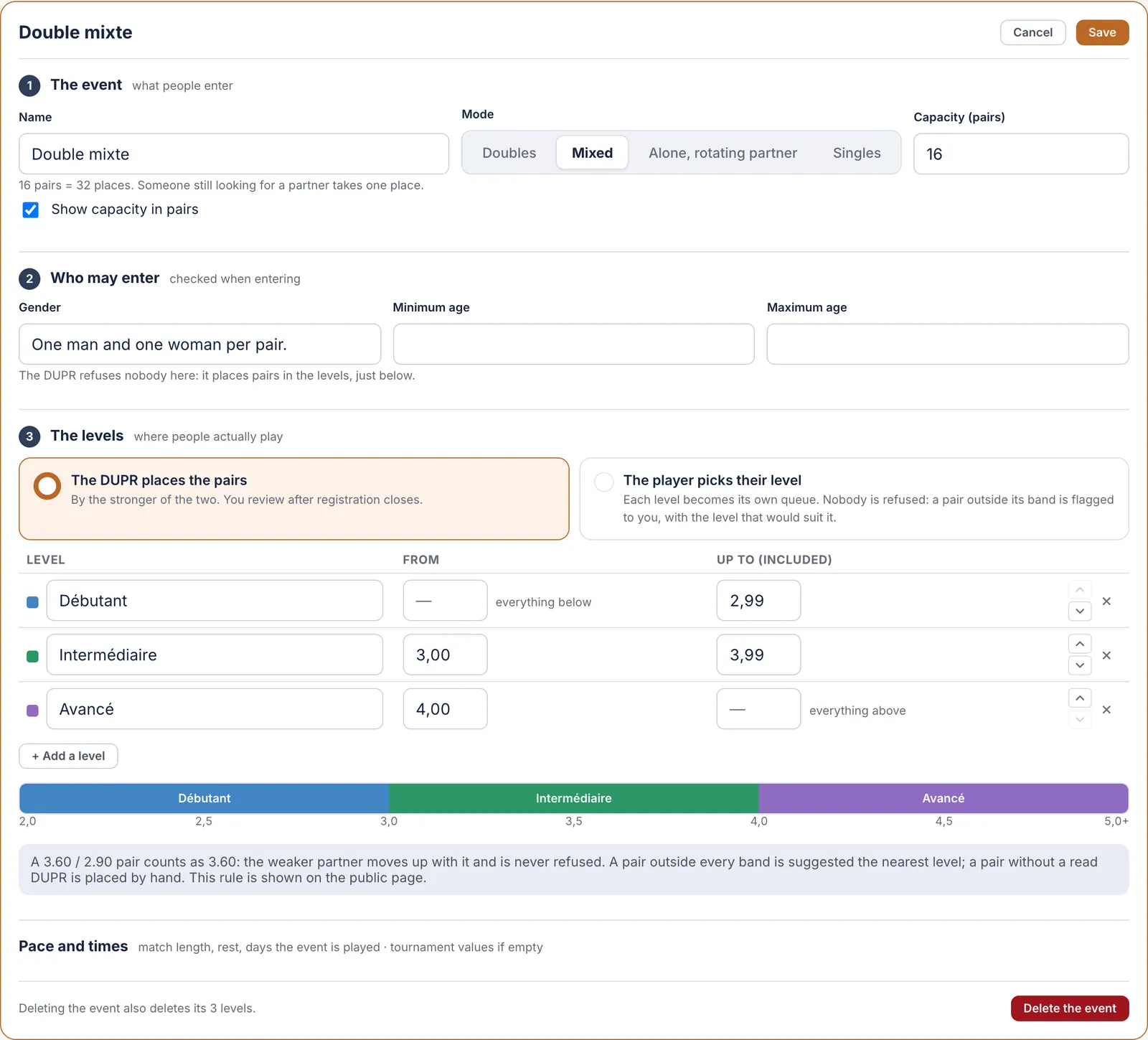 1Capacity, in pairs
2Who may enter
3The levels and their bounds
4What they cover
1Capacity, in pairs
2Who may enter
3The levels and their bounds
4What they cover
Levels are set before entries open: they decide where each pair will play. - 1 Capacity, in pairs
- 2 Who may enter
- 3 The levels and their bounds
- 4 What they cover
-
Tournament · Prepare · Prices & extras
Set the price and the extras
Three kinds of price: degressive by number of events (the second costs less than the first), one price, or free. With degressive pricing, the last step applies to every further event.
Extras are what is sold alongside the entry: Saturday’s supper, a T-shirt. Each has a price, a stock, a maximum per person and its own closing date. The platform takes nothing on them.
On the right, “If everything fills up” estimates what the tournament will bring the club, commission deducted. Change the number of expected players to see what a half-full hall gives.
Without a connected Stripe account, a paid tournament is paid at the desk or by transfer, and entries still open. An unpaid place expires at the end of the hold, unless you mark it “Paid at the desk”.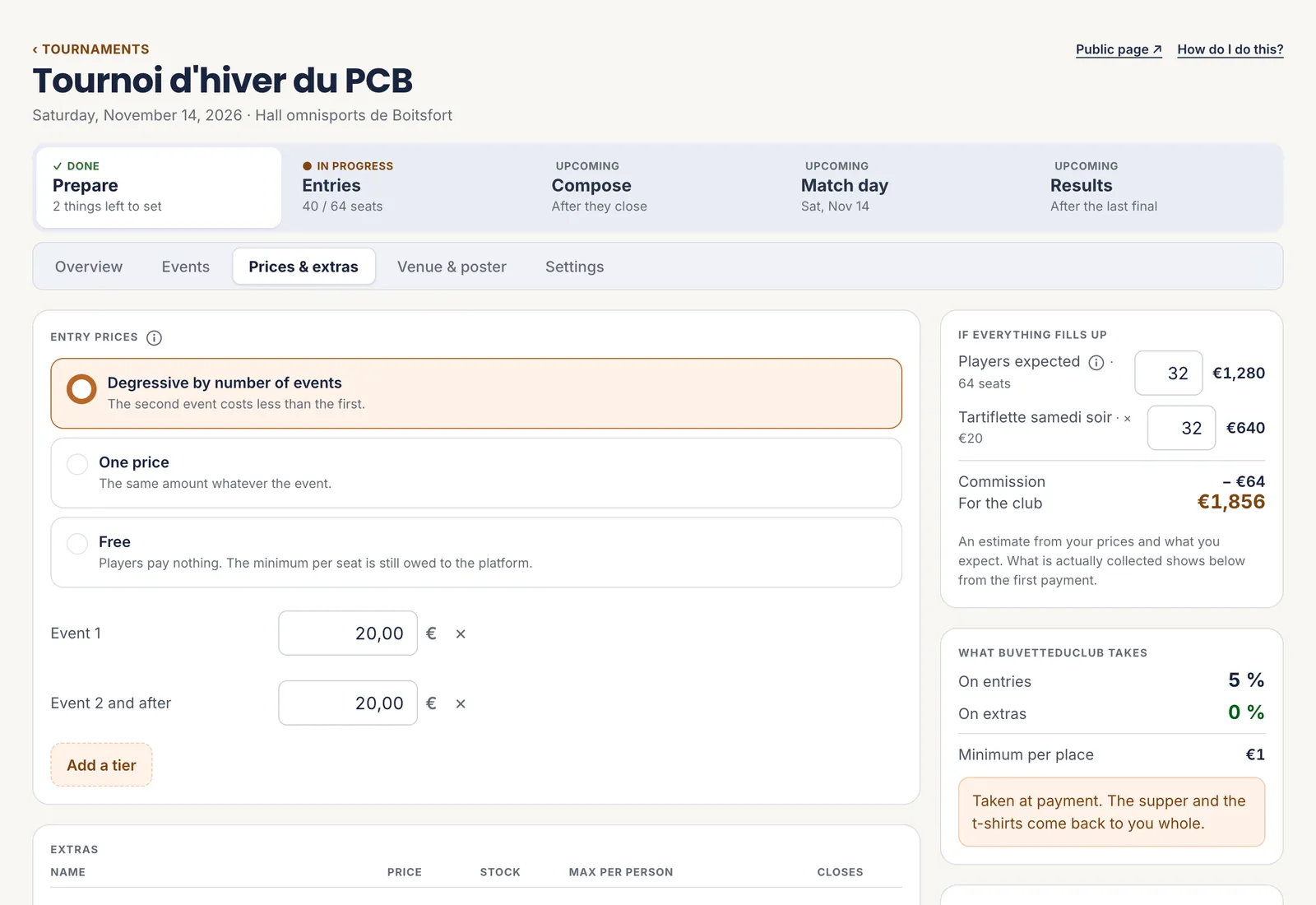 1The kind of price
2The estimate
3What the platform takes
1The kind of price
2The estimate
3What the platform takes
Free does not mean commission-free: the minimum per place is still due. - 1 The kind of price
- 2 The estimate
- 3 What the platform takes
-
Tournament · Prepare · Venue & poster
Give the hall, the courts and the poster
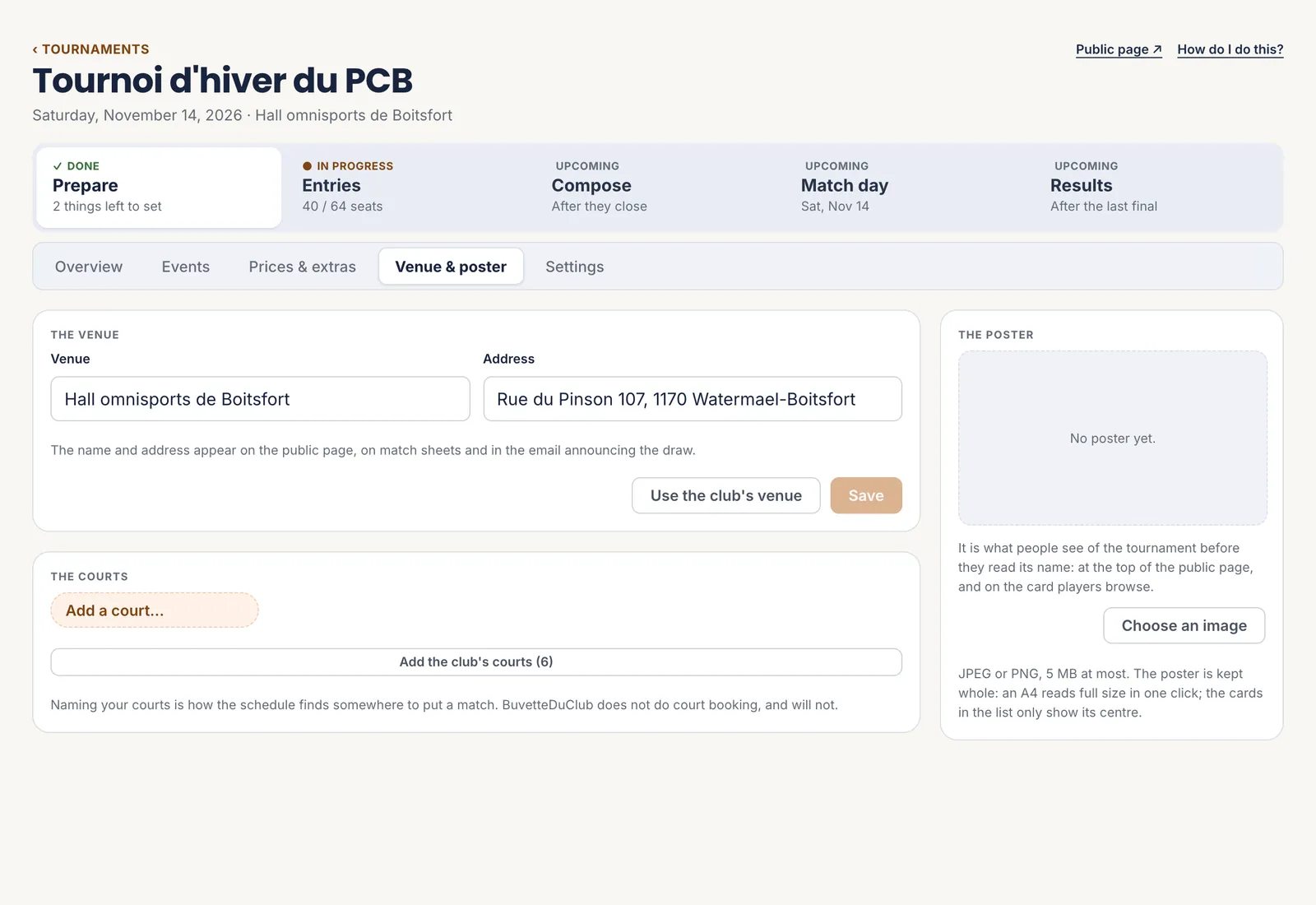
The venue: the name of the hall and its address. They appear on the public page, on the match sheets and in the email announcing the draw. “Use the club’s venue” fills them in one click.
The courts: name them the way people do in the hall — Centre, Court 2. As long as there are none, the schedule has nowhere to put a match. “Add the club’s courts” brings in the ones the club has already declared.
The poster: a JPEG or PNG image of 5 MB at most. It is what people see of the tournament before they read its name.
All ticked? What is left is opening entries: open and follow entries.
 1The venue
2The club’s courts
3The poster
1The venue
2The club’s courts
3The poster
The courts are used for the schedule and nothing else: nothing is booked here. - 1 The venue
- 2 The club’s courts
- 3 The poster
The seven steps
- Create the tournament
- Tick the categories and levels
- Follow what is left to do
- Write the description and set the pace
- Set up the events
- Set the price and the extras
- Give the hall, the courts and the poster
All the help pages
The pages to forward to your members are in the members’ help, in English, French, Dutch and German.